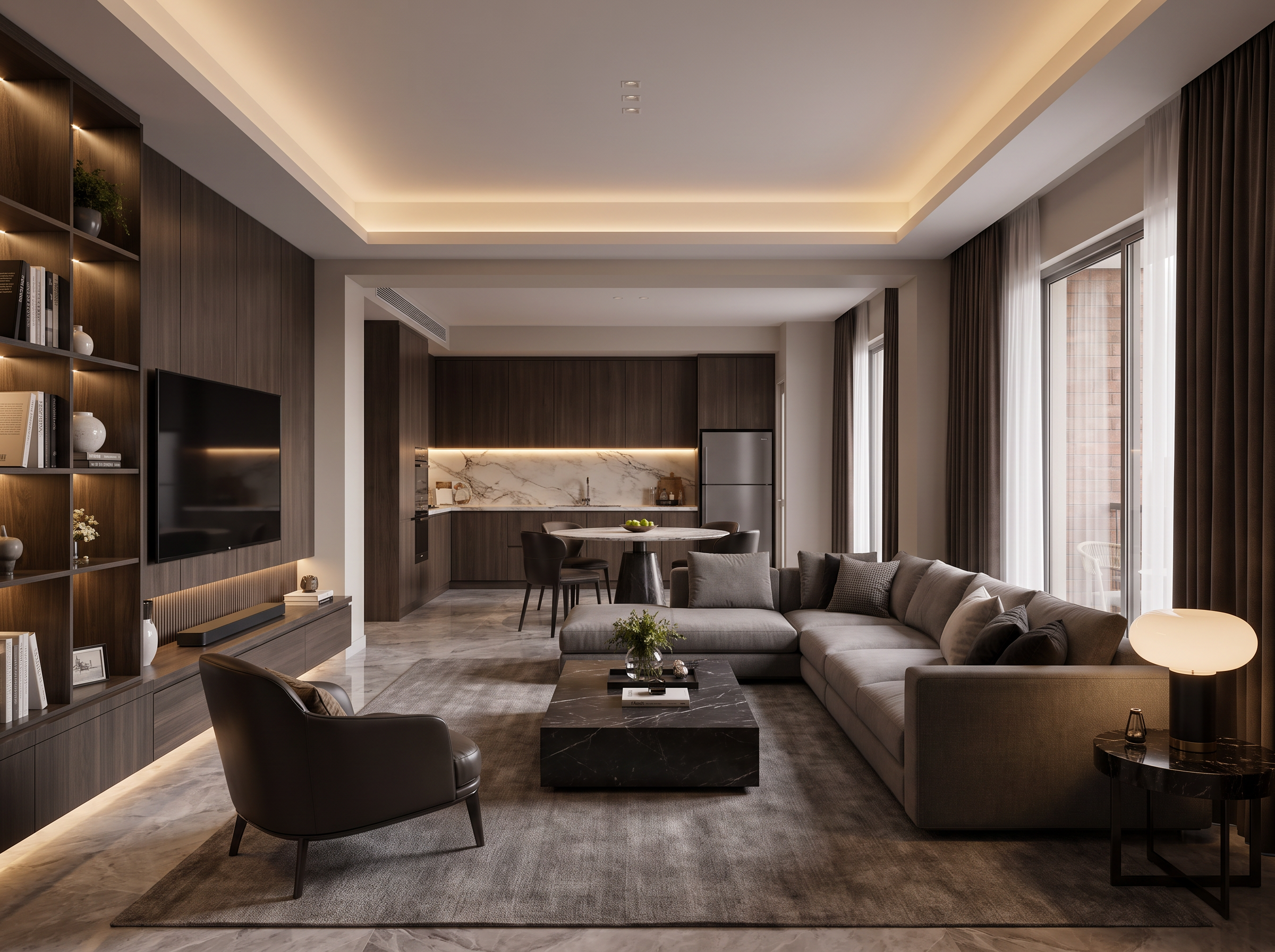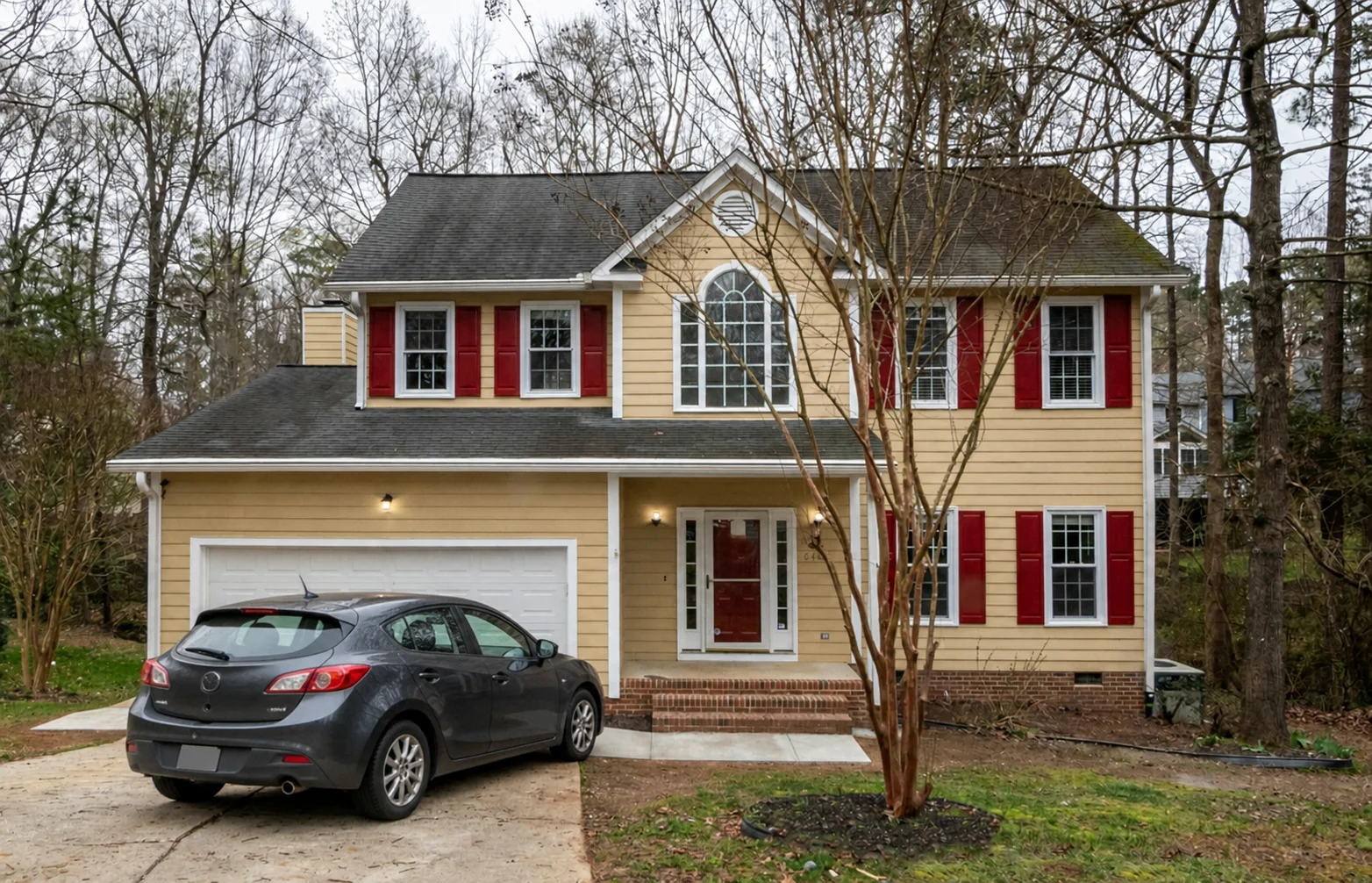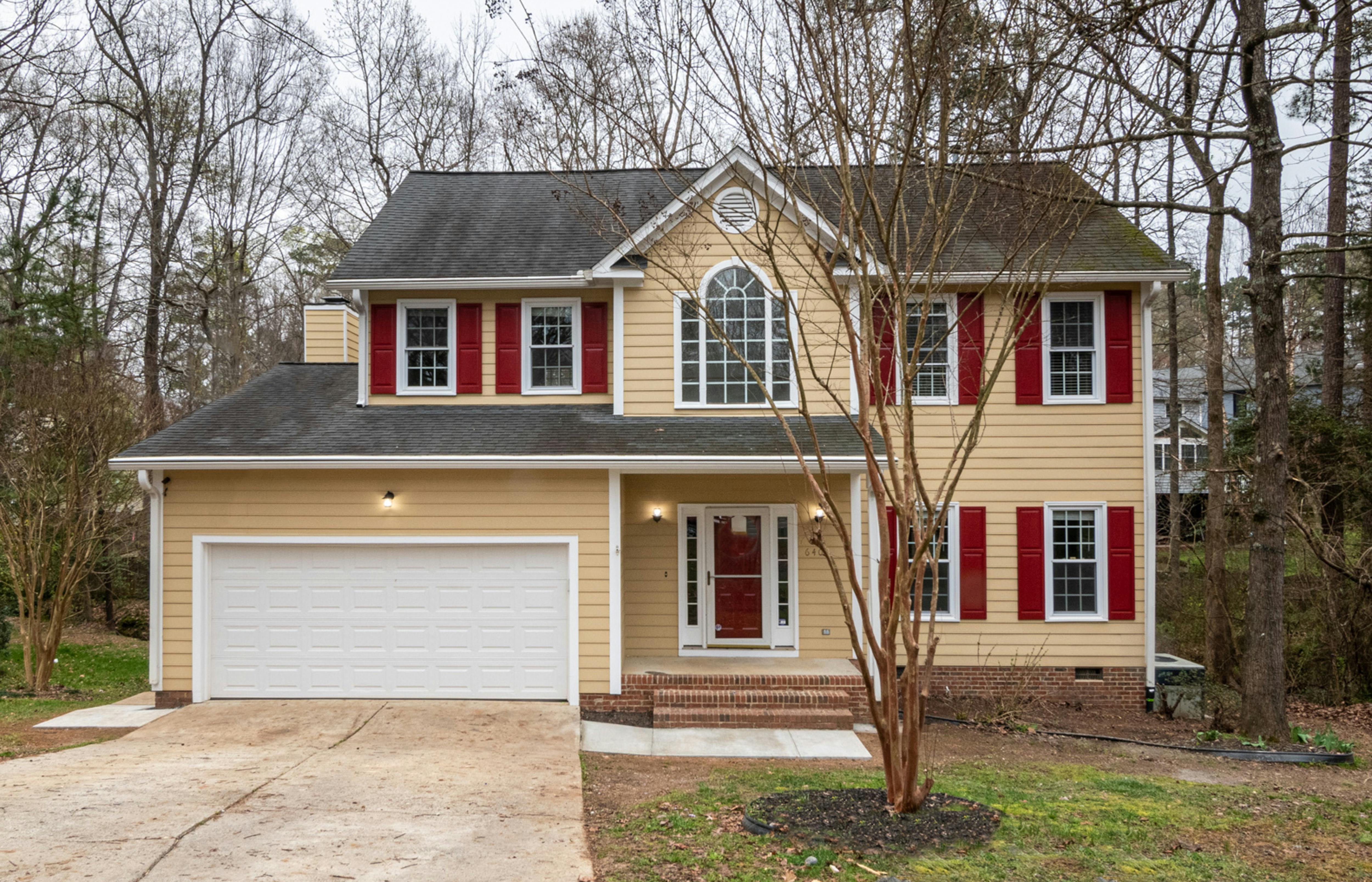
Change One Part of Your Render with AI

Upload an existing render, paint over the part you want to change, and describe the result you want. AI inpainting keeps the rest of the scene as close to the original as possible.

  • Mark the exact part you want to change
  • Add, remove, replace, or change the look of one area
  • Keep the composition and lighting consistent
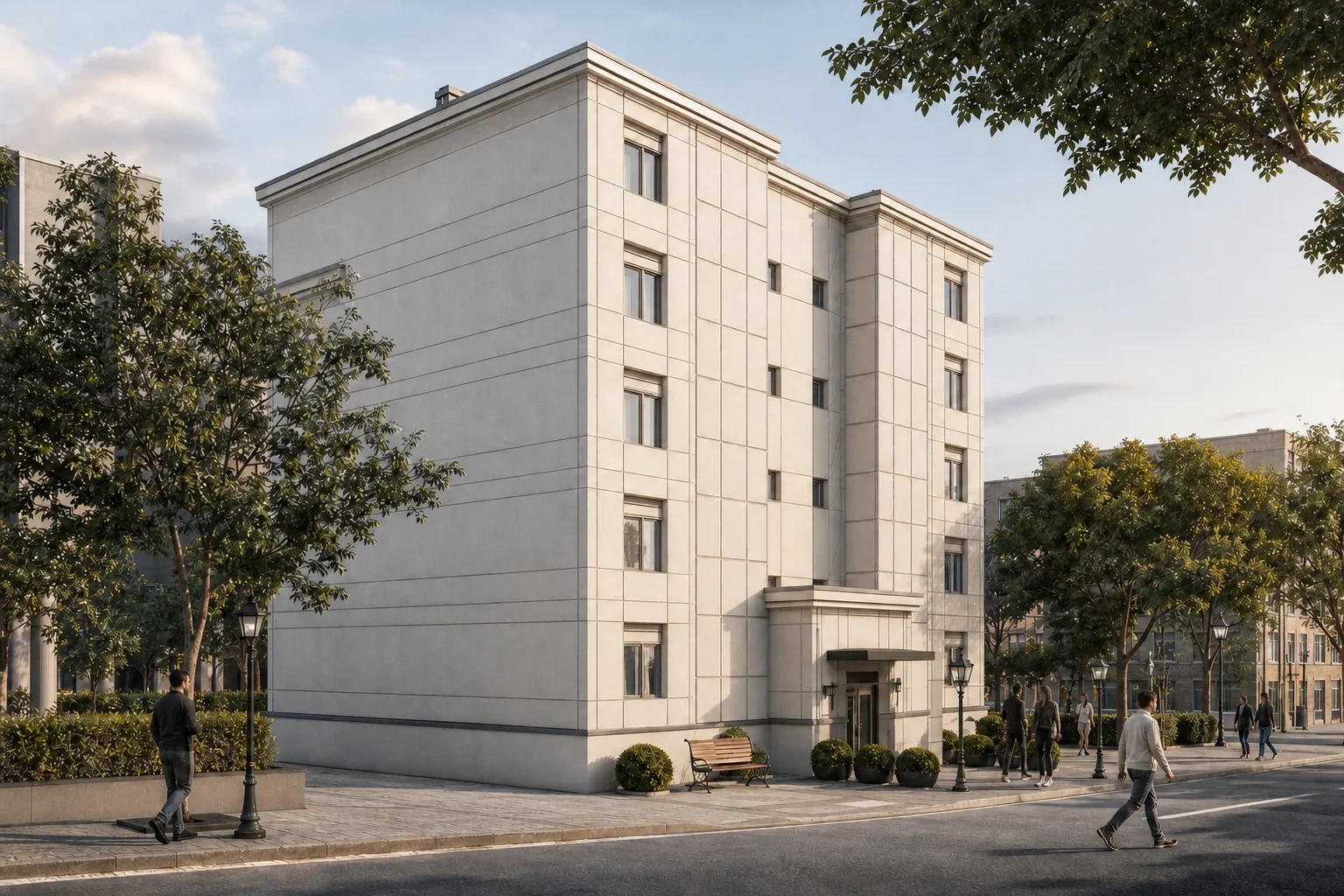
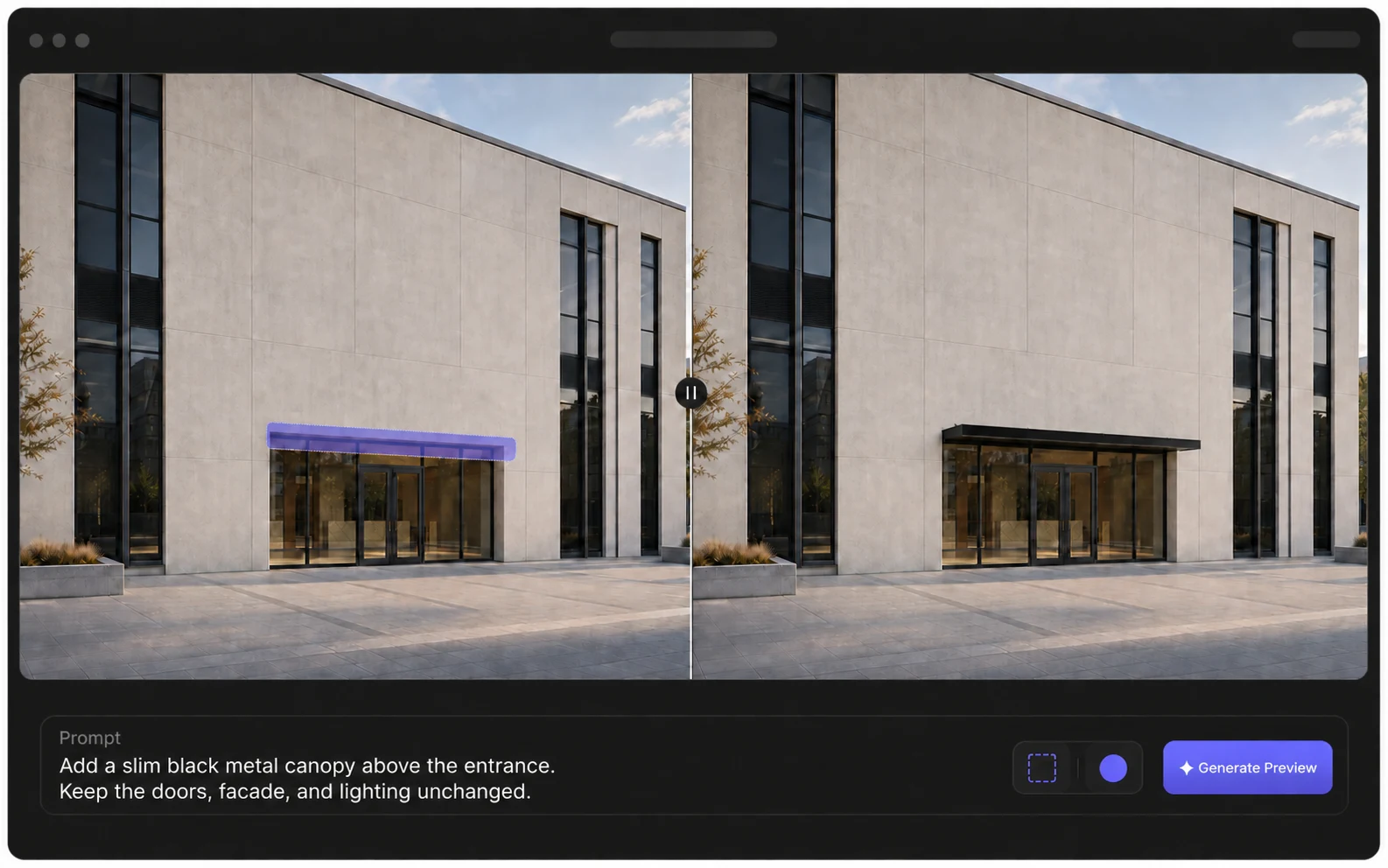
AI render editor preview comparing a selected entrance area with the generated black canopy result

Edit One Part Without Rebuilding the Entire Render

Start with an image, paint over the part you want to change, then tell us what the finished area should look like.

Original → Marked Area → Edited Result

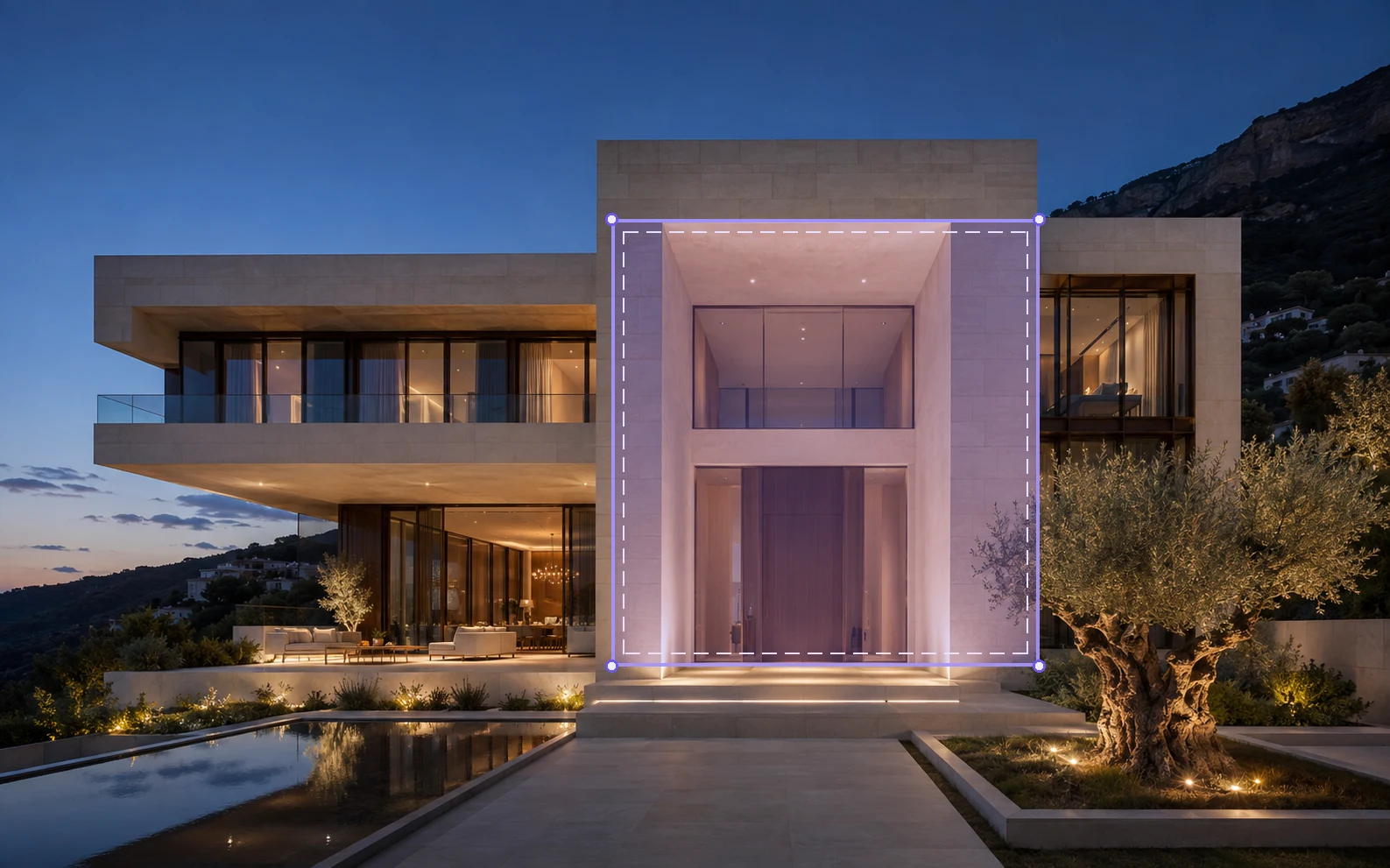
The marked area shows what should change before generation, so you can adjust it before using credits.

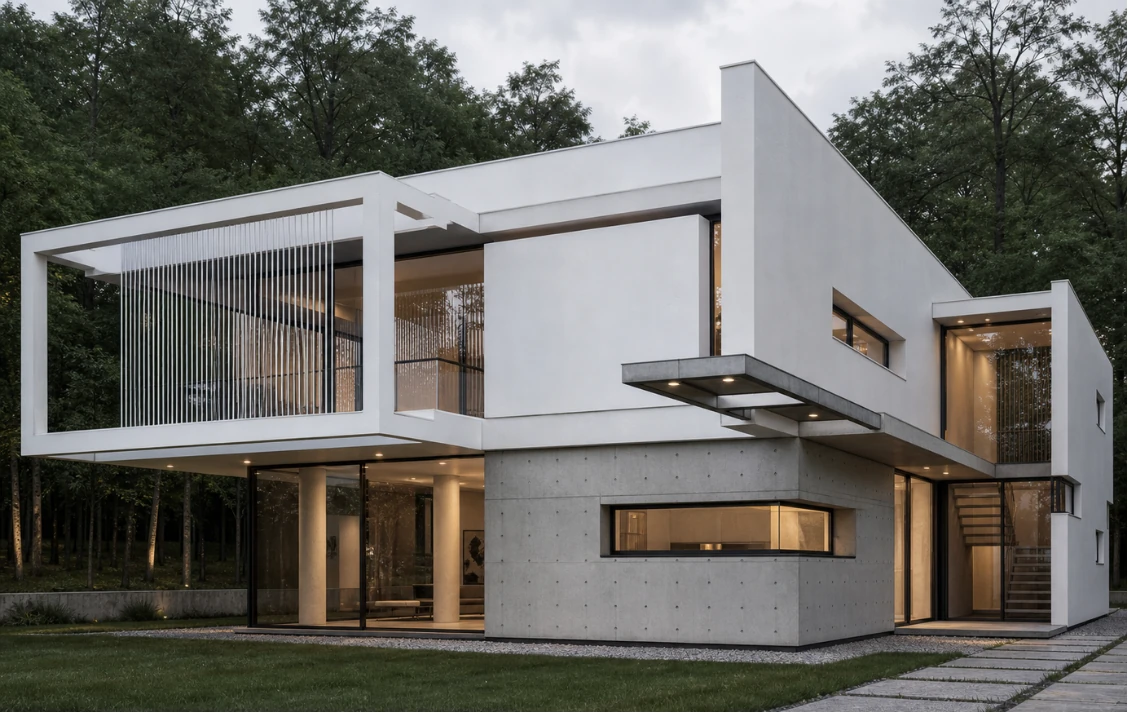
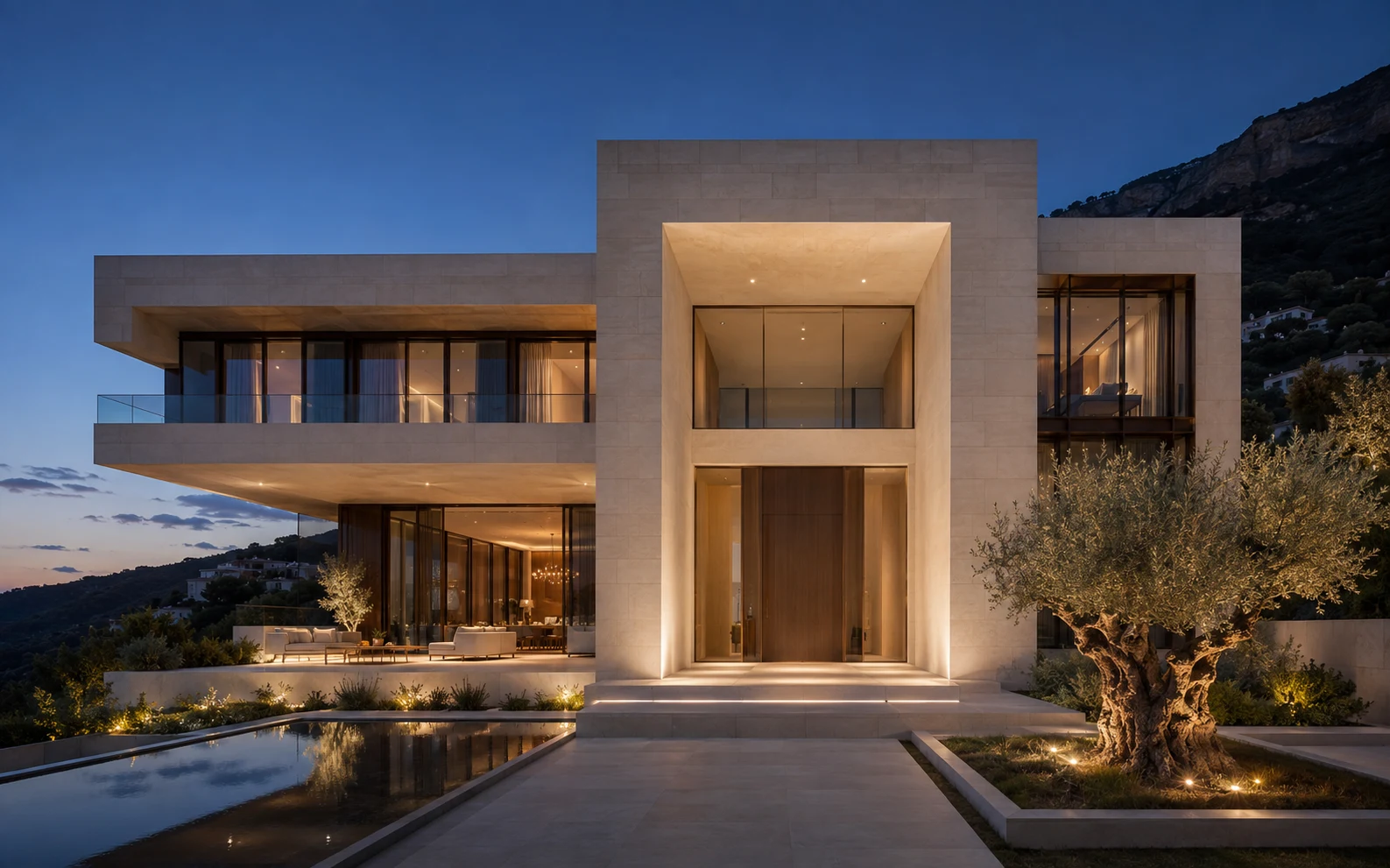
Modern stone villa entrance before selected-area editing
OriginalExisting Architectural Image
Villa entrance volume selected for an AI material edit
Marked AreaEntrance Volume
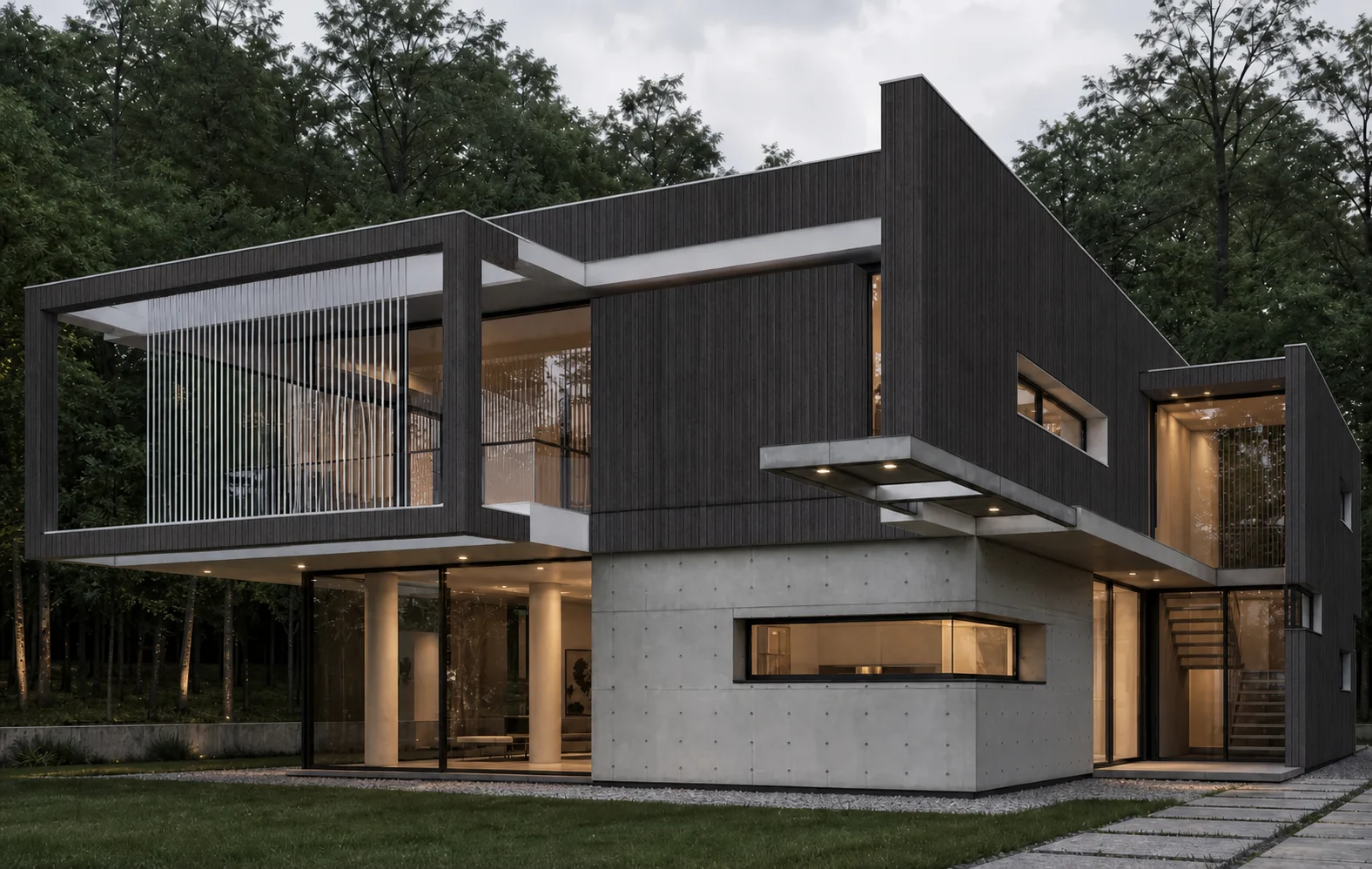
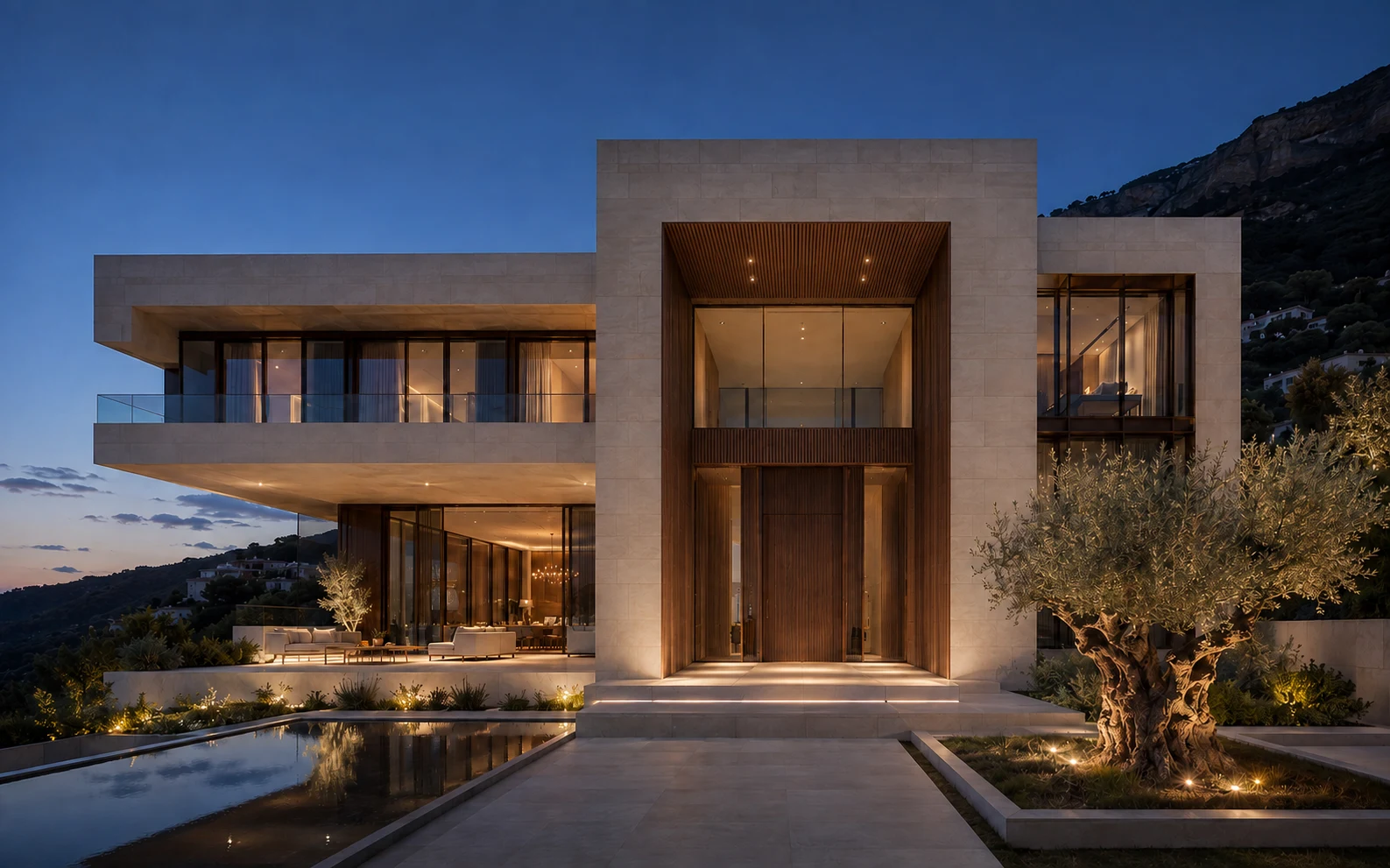
Same villa entrance after dark timber cladding was applied to the selected area
ResultDark Timber Cladding
Prompt

Replace the selected entrance volume with vertical dark timber cladding. Preserve the windows, doors, stone facade, and evening lighting.
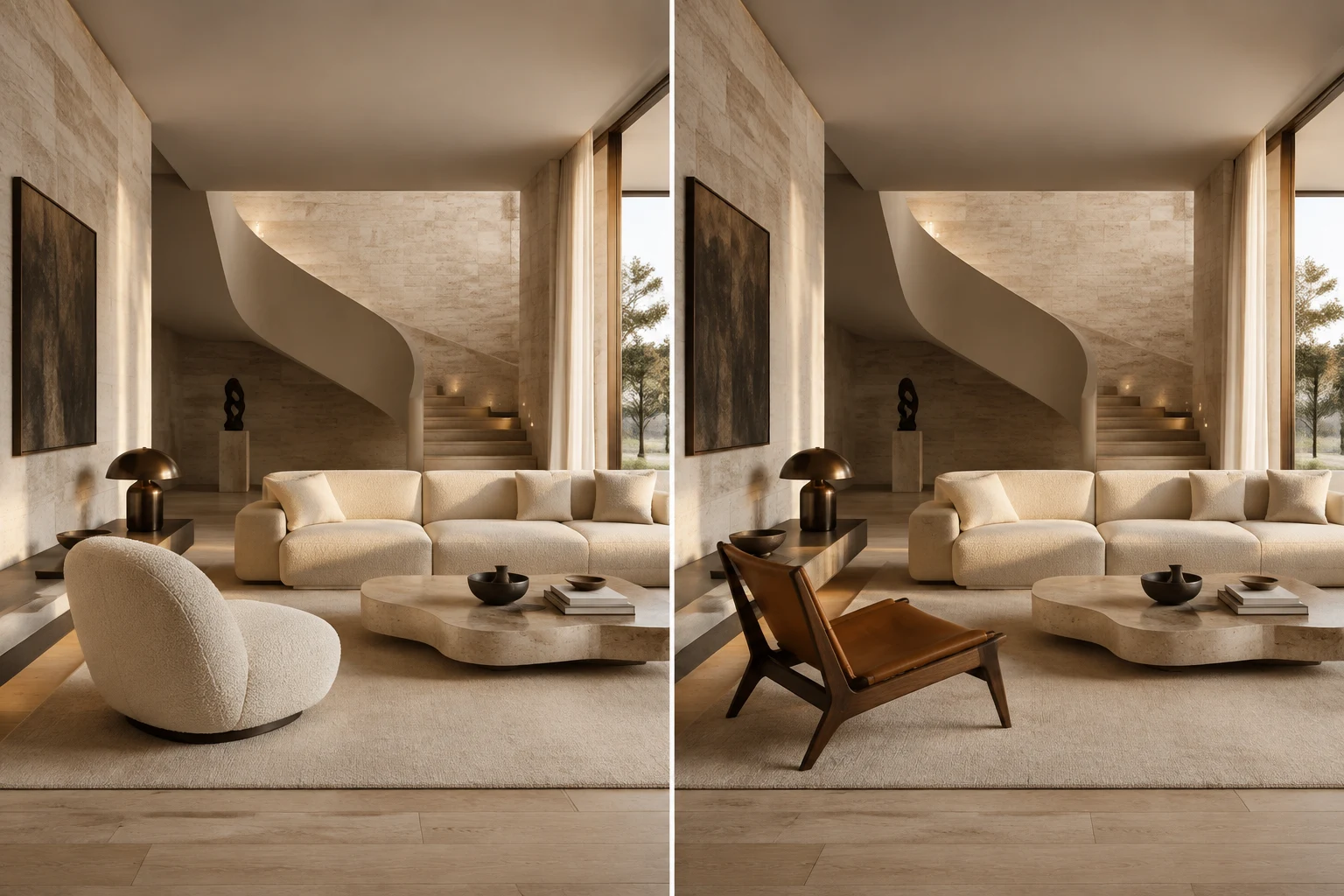
What Can You Edit with AI Inpainting?

Choose the task, mark the visible area, and describe one focused change.

Explore a New Finish Without Rebuilding the Scene

Select a facade, wall, floor, roof, countertop, or furniture surface and describe a new material, color, texture, and finish.

Prompt

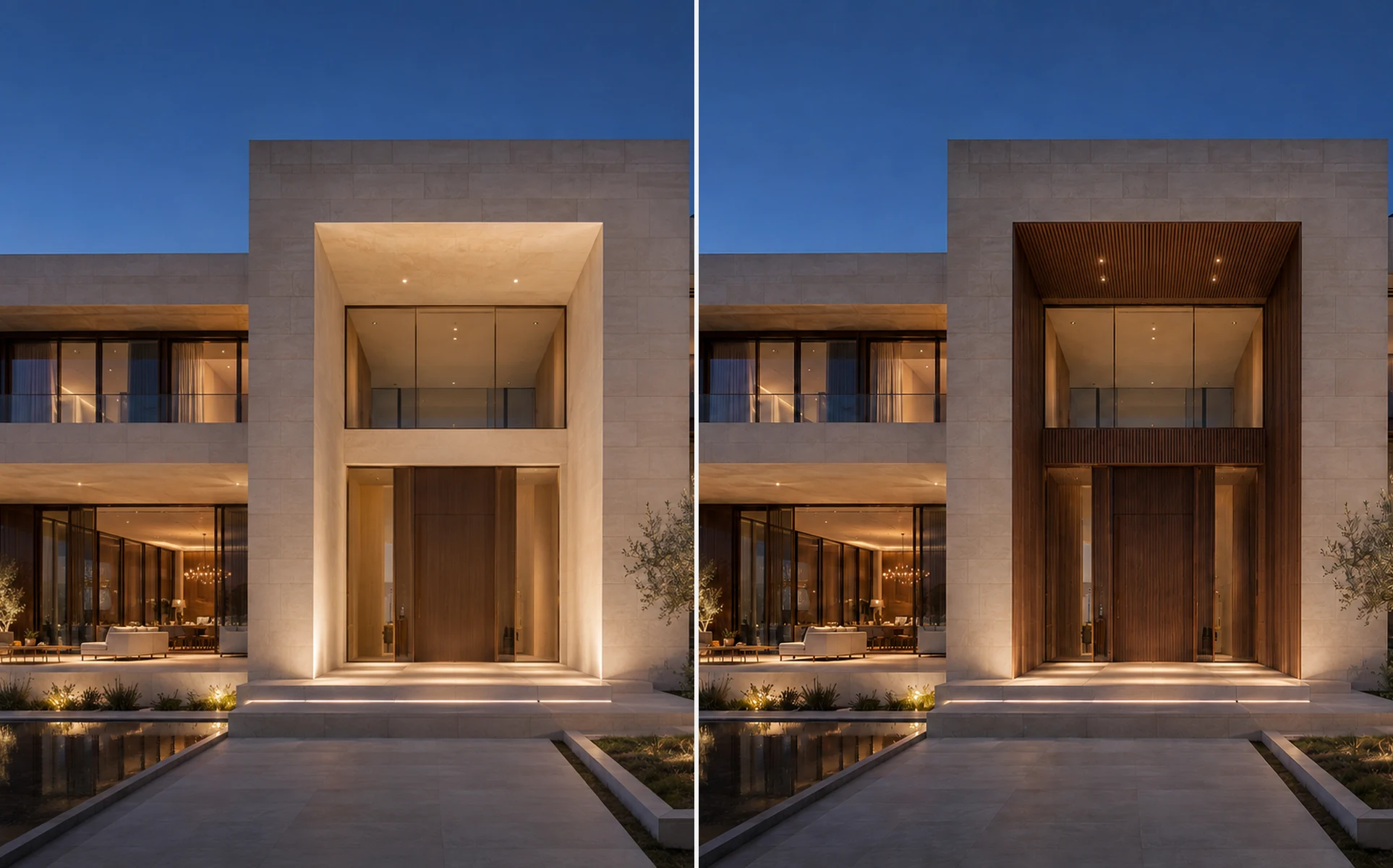
Replace the selected entrance volume with vertical dark timber cladding. Preserve the windows, doors, stone facade, and evening lighting.
Try This Edit
Before and after comparison of a stone villa entrance changed to dark timber cladding

How AI Inpainting Works

Start from an existing image and guide one local revision.

01

Upload Your Render

Upload an architectural render, interior visualization, exterior image, landscape concept, or building photograph.

02

Select the Area

Use the selection brush to mark the material, object, surface, or detail you want to edit.

03

Describe and Generate

Write one focused instruction, compare the result, and refine the mask or prompt when needed.

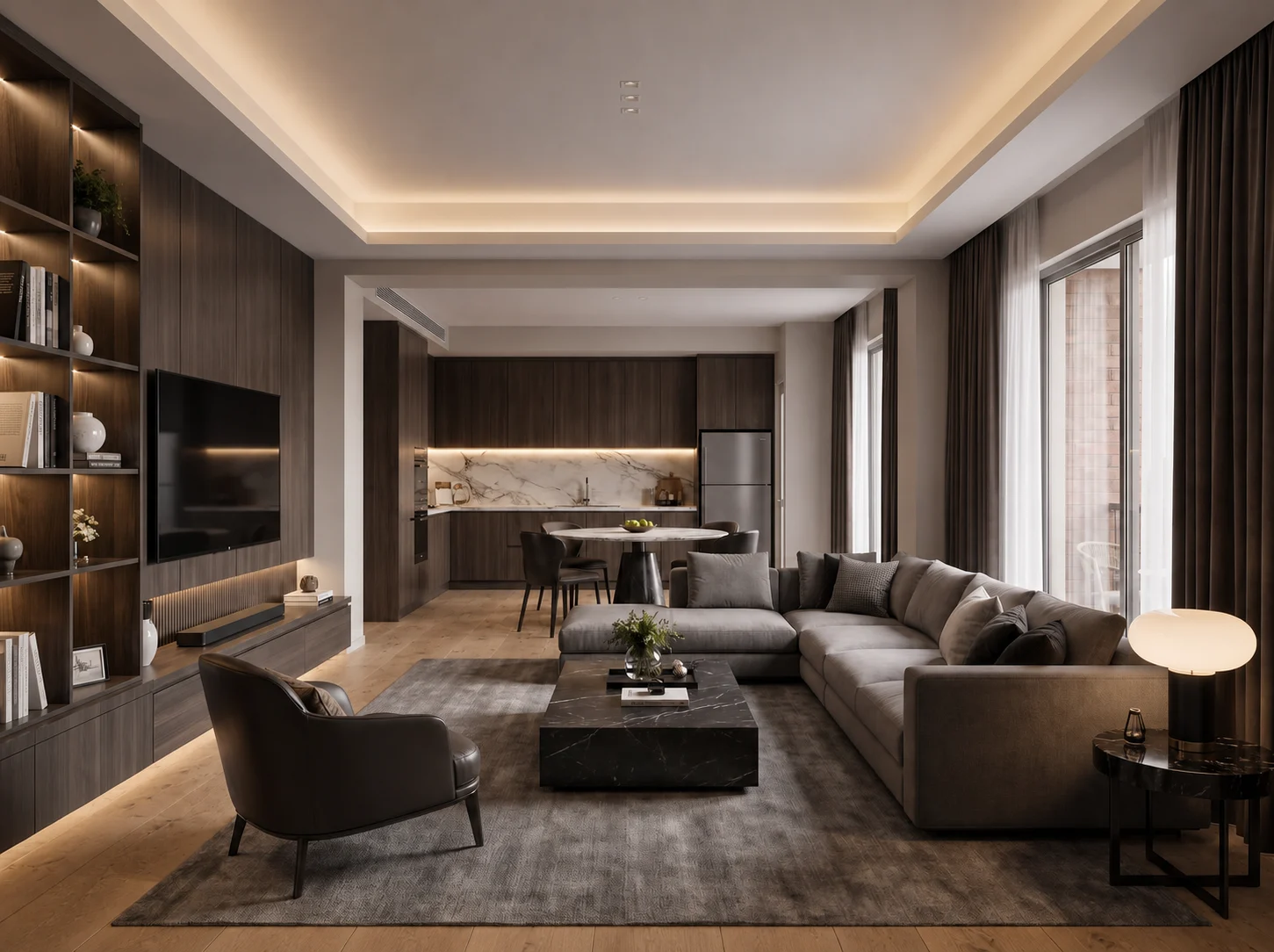
Furnished interior after the selected stone floor was changed to oak

Built for More Controlled Architectural Editing

General AI image generators can reinterpret the entire image when only one detail needs to change. The AI Render Editor focuses the request on a visible selection and uses the original scene as context.

  • Selected-Area EditingDefine where the change should happen instead of regenerating the complete view.
  • Structure-Aware ResultsGuide the edit using the existing geometry, perspective, scale, and composition.
  • Consistent Visual ContextUse surrounding lighting, materials, shadows, and adjacent elements as reference.
  • Iterative RefinementUpdate the prompt, adjust the mask, or continue editing the generated result.

See What Selected-Area Editing Can Produce

Each example keeps the source, selected region, written request, and result together.

Modern residence before a facade material edit
Original
Main street-facing facade selected for editing
Marked Area
Residence after a localized facade material edit
Result

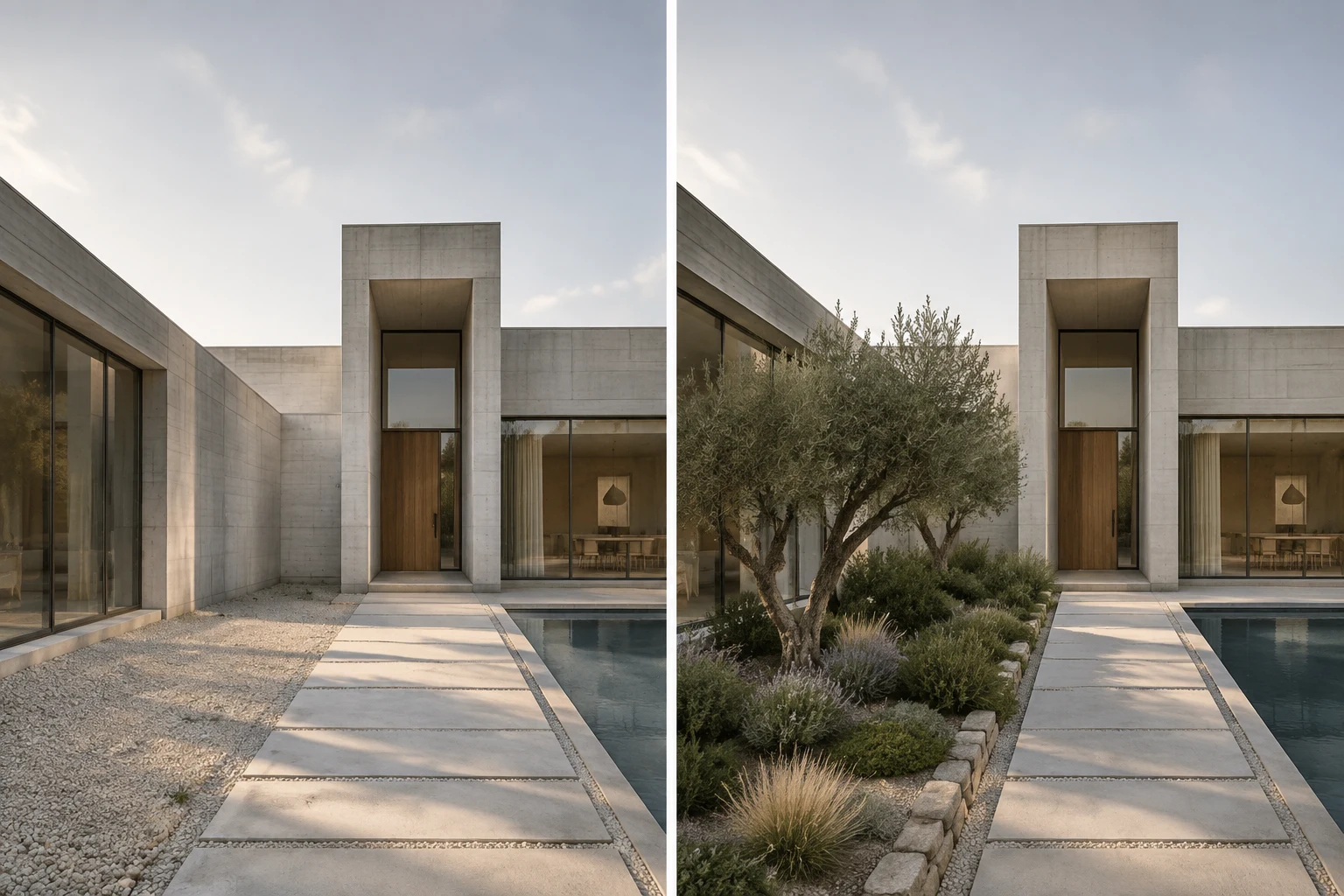
Change a Facade Material

Original
A modern residence with a light concrete exterior.
Selected Area
The main street-facing facade.
Prompt
Replace the selected facade with vertical dark timber cladding. Preserve the windows, roofline, entrance, and evening lighting.
Result
A new facade material direction without recreating the complete building render.
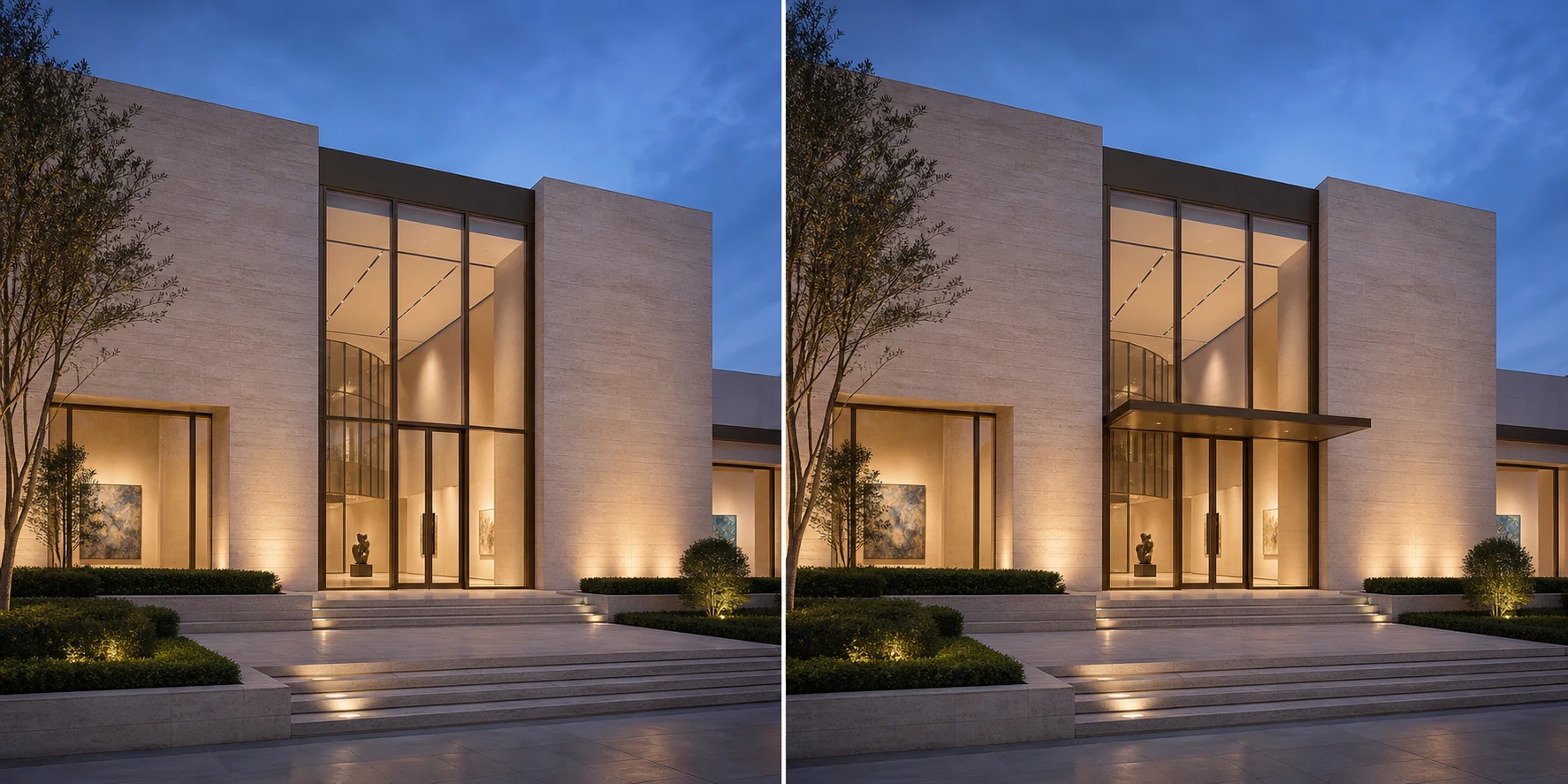
Edit a Similar Render
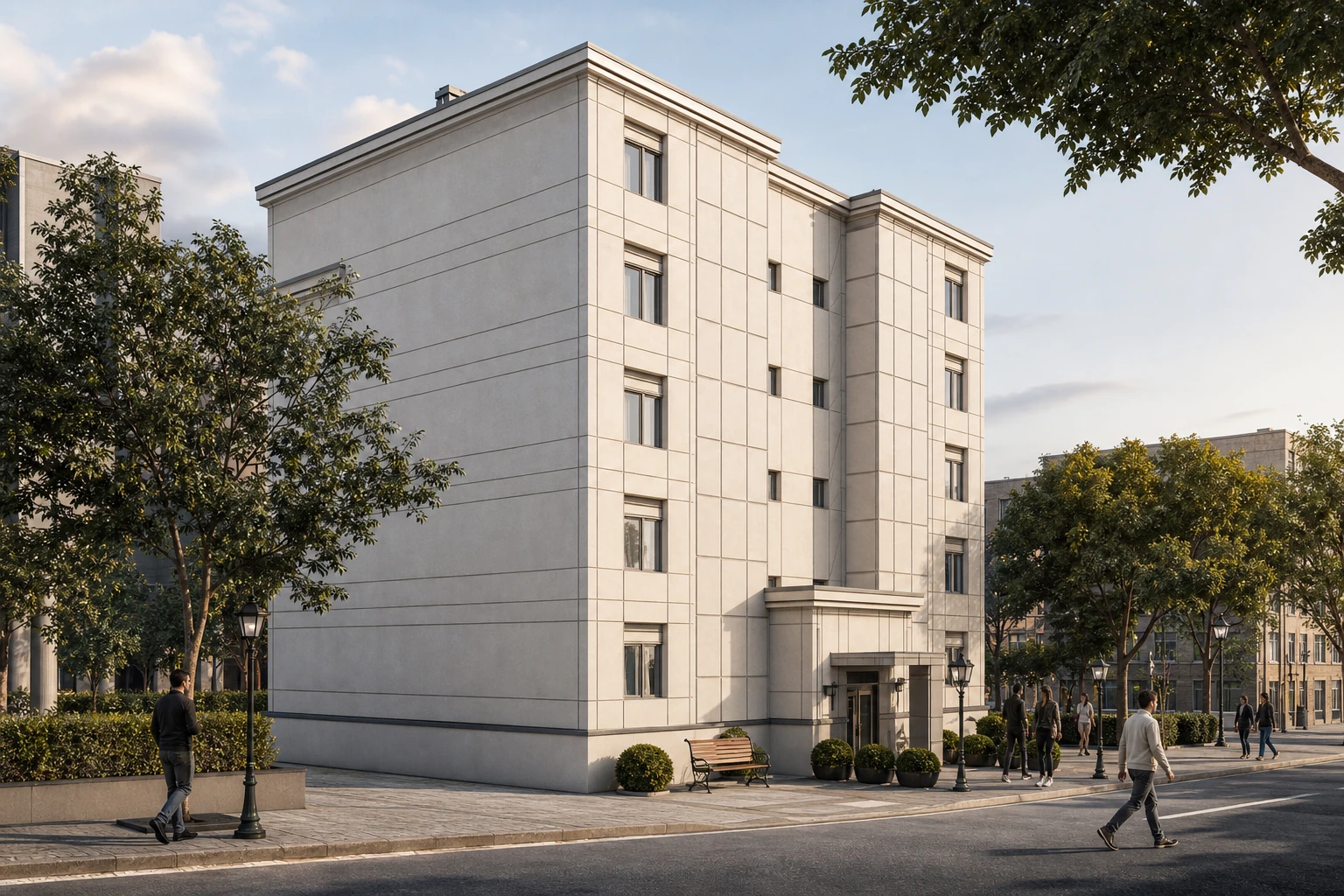
Building entrance before a localized edit
Original
Area above the entrance doors selected for editing
Marked Area
Building entrance after a localized canopy edit
Result

Update an Entrance

Original
A commercial building with an exposed entrance.
Selected Area
The space immediately above the entrance doors.
Prompt
Add a slim black metal canopy above the entrance with a minimal contemporary design.
Result
A revised entrance concept integrated into the existing perspective.
Edit a Similar Render
Living room before a localized flooring edit
Original
Visible floor surface selected for editing
Marked Area
Living room after a localized oak flooring edit
Result

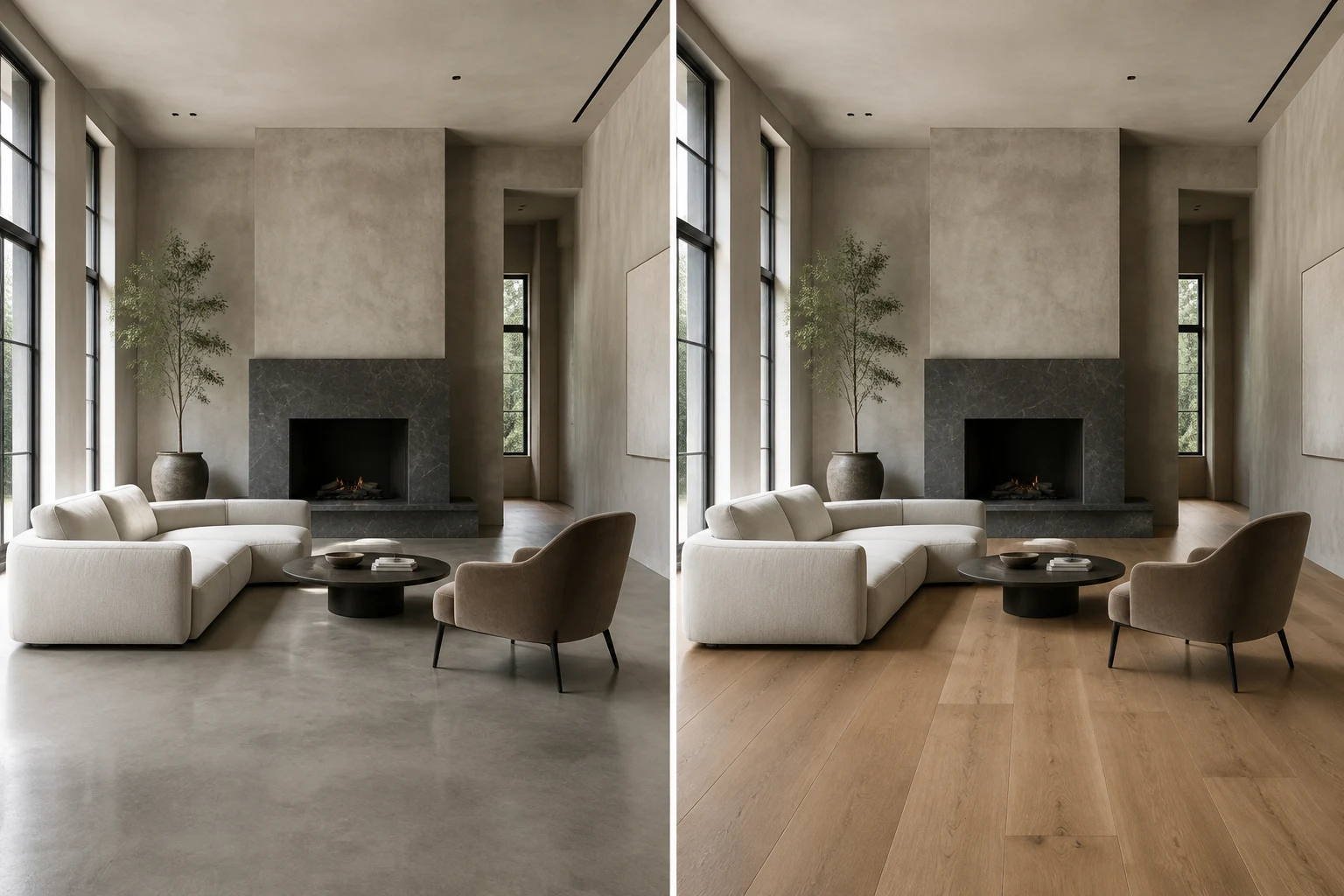
Refine an Interior Material

Original
A furnished living room render with a polished stone floor.
Selected Area
The visible floor surface.
Prompt
Replace the selected flooring with wide natural oak planks in a warm matte finish. Keep the furniture and lighting unchanged.
Result
An alternative flooring concept presented within the same room design.
Edit a Similar Render
Exterior render before removing an unwanted object
Original
Vehicle and surrounding area selected for removal
Marked Area
Exterior render after the selected distraction was removed
Result

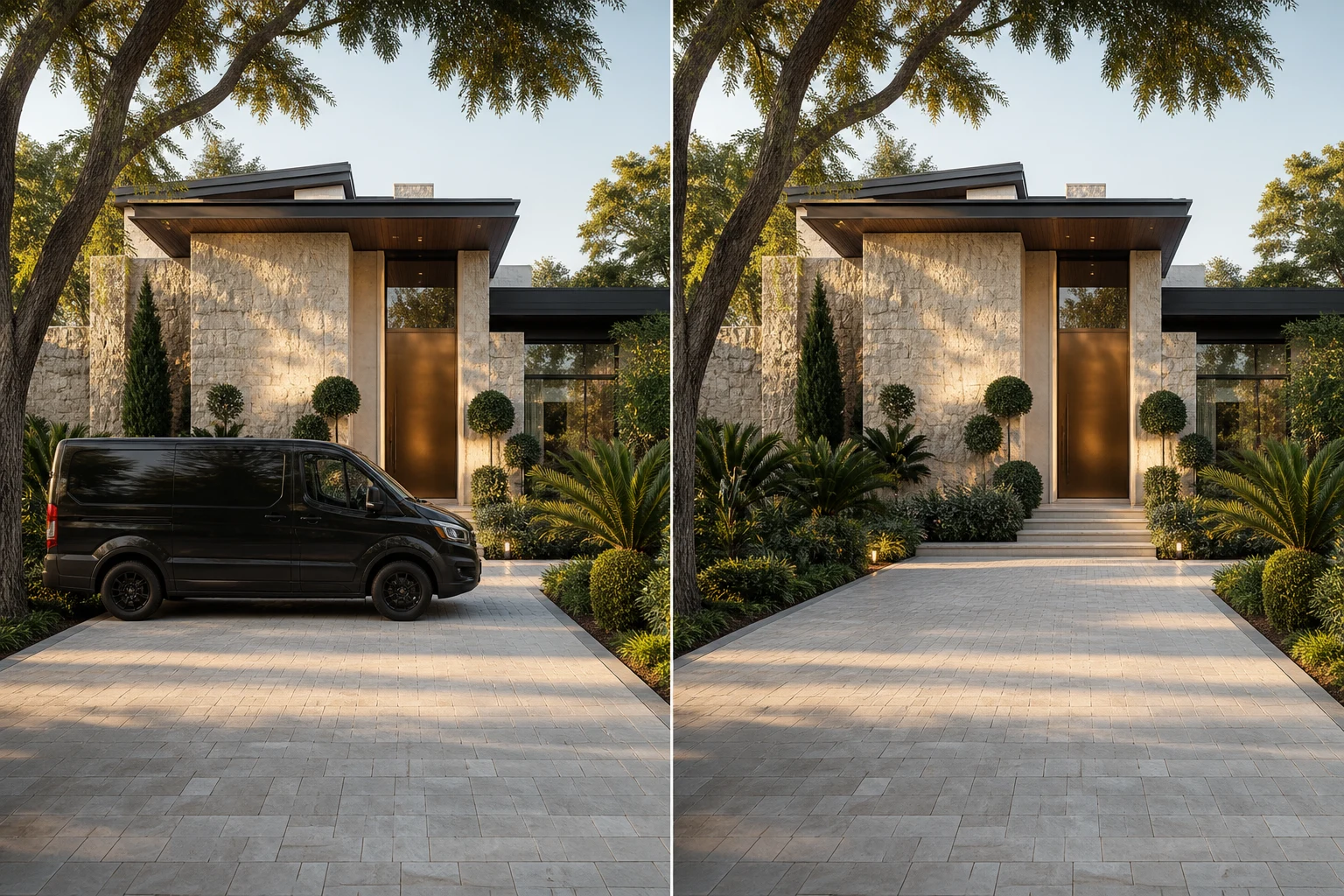
Remove an Unwanted Object

Original
An exterior render with a parked vehicle blocking the garage.
Selected Area
The vehicle and the area immediately around it.
Prompt
Remove the vehicle and reconstruct the pavement and landscaping behind it.
Result
A cleaner presentation image with the selected distraction removed.
Edit a Similar Render

AI Inpainting vs. AI 3D Rendering

One refines a selected region. The other creates a complete rendered view.

CompareAI InpaintingAI 3D Rendering
Starting PointAn existing render or architectural imageA white model, sketch, or basic 3D view
Editing ScopeA selected area of the imageThe complete image
Best ForMaterials, objects, details, cleanup, and revisionsCreating a complete rendered visual
Typical WorkflowSelect, describe, edit, and refineUpload, describe, render, and review
OutputA locally edited imageA complete architectural rendering

Who Is the AI Render Editor For?

For people who already have an image and need to refine one part of it.

Architects

Explore facade materials, entrances, windows, landscape elements, and other local design changes before returning to the 3D model or technical documentation.

Main Goal

Review a focused visual revision without rebuilding the entire view.

Typical Input

Exterior renders, model screenshots, and architectural visualizations.

What You Get from the AI Render Editor

A focused image-editing workflow—not an architectural modeling or documentation tool.

What the Editor Produces

  • A locally edited architectural concept image
  • Material, object, and detail variations
  • A selected-area generated result
  • Original and edited result comparison
  • A downloadable concept image
×

What It Does Not Produce

  • ×An edited 3D model
  • ×A CAD, Revit, SketchUp, or PSD file
  • ×Manual model-geometry editing
  • ×Verified construction dimensions
  • ×Exact material specifications
  • ×Permit-ready or construction documents

How to Get a More Useful Result

A precise selection and one focused instruction give the editor clearer information to work with.

Start with a clear, high-resolution source image

Select the complete object or surface you want to change

Include a small amount of surrounding context near the edge

Describe the material, color, texture, scale, and finish

State important elements that should remain consistent

Make one focused change at a time

AI Render Editor Questions

What to expect from selected-area architectural image editing.

Open the editor →
What is AI inpainting?

AI inpainting regenerates a selected part of an image using a mask, a written instruction, and the surrounding visual context. It is useful when you want to change one area instead of recreating the complete image.

What types of architectural images can I use?

Use architectural renders, exterior visualizations, interior renders, landscape images, AI-generated concepts, or clear building photographs in JPG, PNG, or WEBP format.

Will areas outside my selection change?

A selected-area editor is designed to preserve the surrounding image, but some blending may occur around the selection edge so the new content fits naturally into the scene.

Can this workflow change materials or remove objects?

Yes. Results still depend on image clarity, selection quality, perspective, and the detail in the instruction.

Does the editor modify my 3D model?

No. This page demonstrates image editing. It does not modify an underlying SketchUp, Revit, Rhino, Blender, or other 3D model.

Can I use a result for construction?

No. The output is a visual concept and presentation image, not a construction drawing, verified material specification, or technically approved architectural document.

How is this different from AI 3D Rendering?

AI 3D Rendering creates a complete rendered image from a white or clay model view. AI Render Editor starts with an existing image and changes only the selected area.

Edit One Area Without Starting Over

Upload an existing render, mark the area, and generate a focused material, object, landscape, or cleanup edit.