YOUR ROOM + A NEW COLOR

AI Room Color Visualizer

Upload a photo of your room to preview new colors on walls, floors, cabinets, or furniture—while keeping the room’s layout, objects, and perspective recognizable.

  • Change one surface at a time
  • Keep your room recognizable
  • Compare colors before you commit
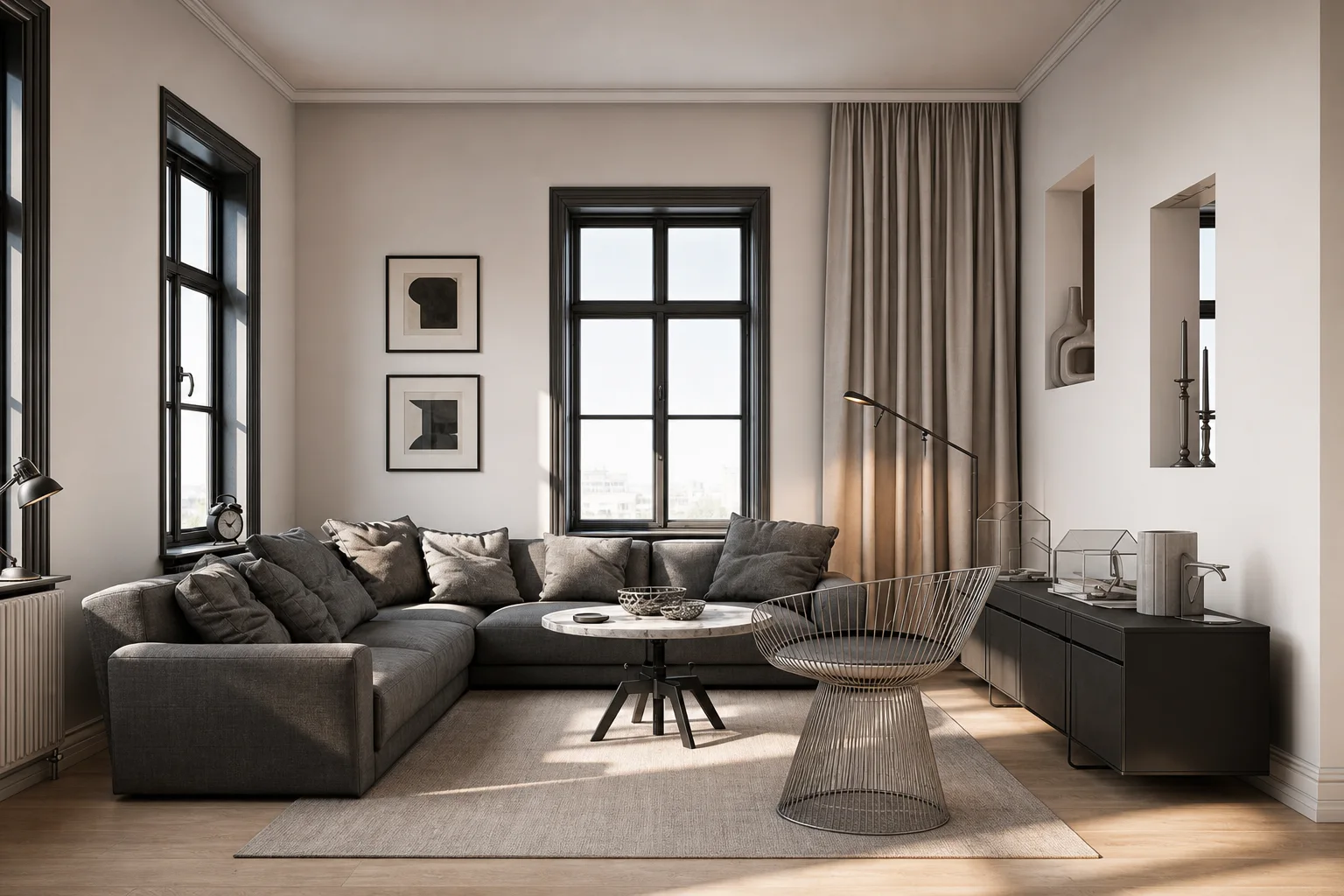
Original living room before wall recoloring
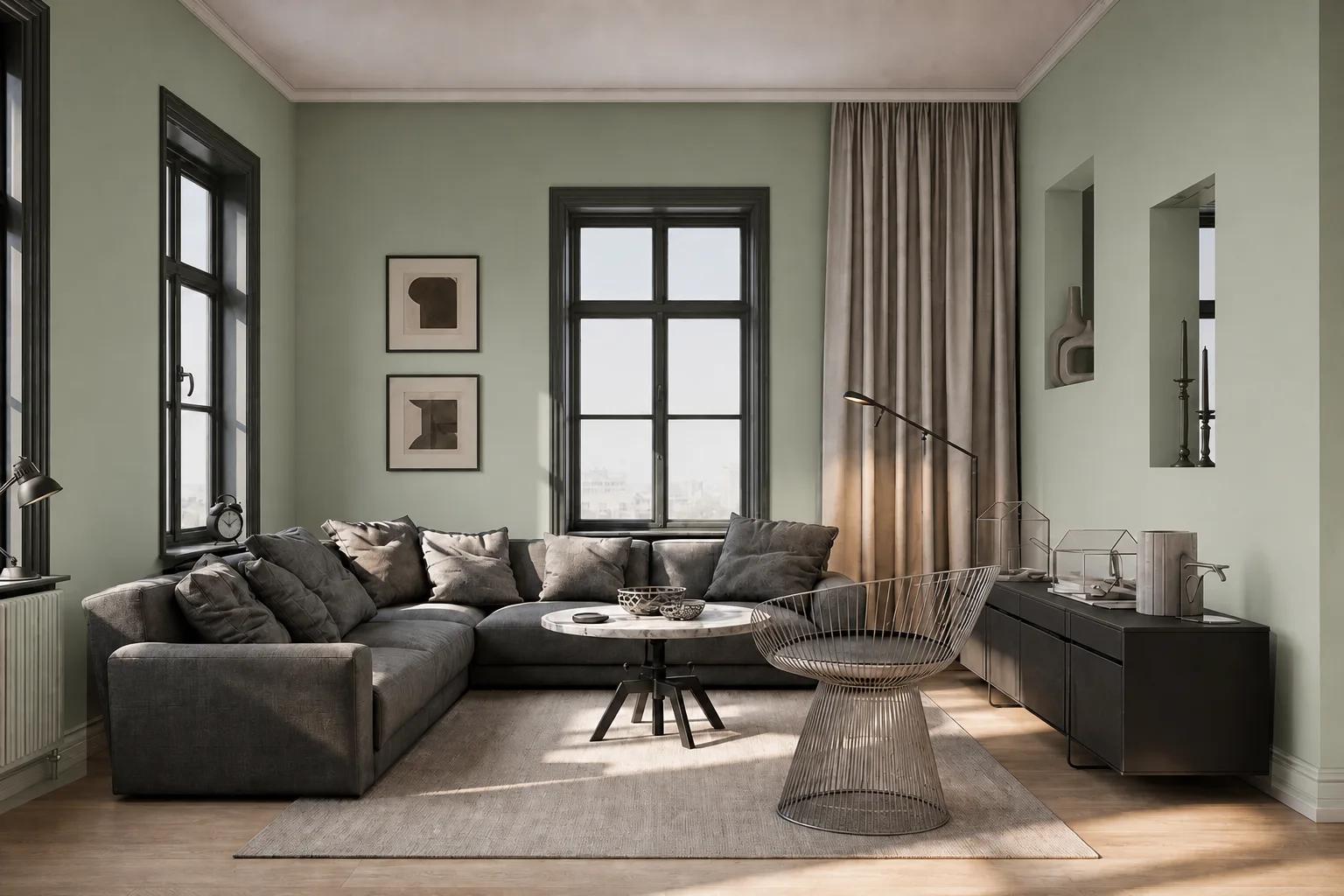
After
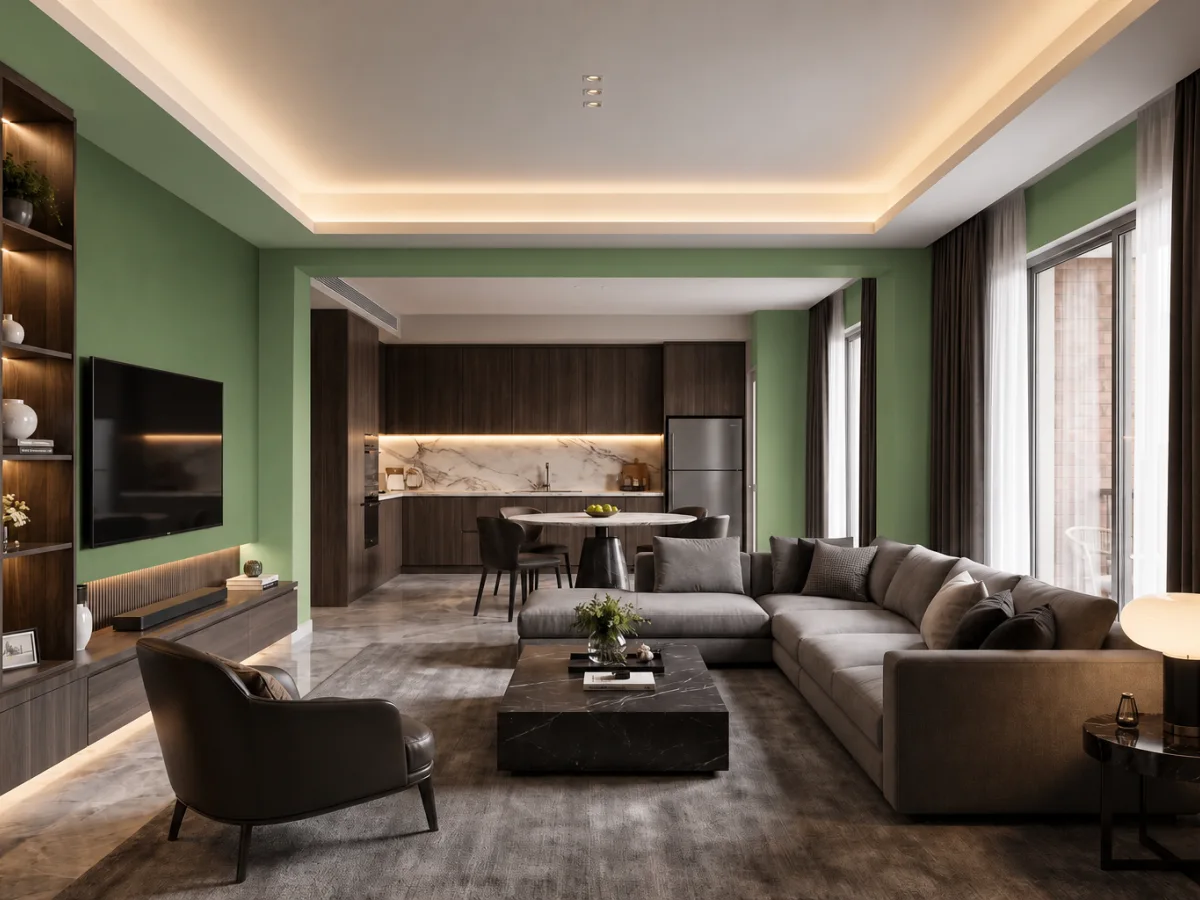
Living room with sage green recolored walls
Before
Room color preview preserving the original room composition

Compare the Original and Recolored Room

See how your chosen color works with the room's existing furniture, flooring, lighting, and architectural details. Switch between the original photo and the generated result, then revisit earlier versions in History.

Use Before / After to review what changed
Try another color with the same room photo
Try another color and revisit previous results
Download the direction you want to keep

This AI-generated image is a visual preview. Colors may appear different depending on your screen, room lighting, camera settings, surface texture, and material finish.

Recolor My Room

Recolor the Surfaces That Shape Your Room

Use the AI Room Color Visualizer to recolor the surfaces and objects that have the greatest impact on your interior palette.

Walls

Use the AI wall color visualizer to preview a new wall color or accent wall before buying paint or starting a renovation.

Floors

Compare wood tones, tile colors, carpet shades, and other floor color options.

Cabinets

Explore new colors for kitchen cabinets, bathroom vanities, built-in storage, and fitted furniture.

Furniture

Test different colors for sofas, chairs, beds, curtains, rugs, and other visible furnishings.

Change the Color, Keep the Room

The visualizer is designed for controlled color changes rather than a complete room redesign.

Original room with a clearly visible target surface
Floor Planning

Change Only the Area You Describe

Choose a surface or object and describe its exact location. AI is instructed to keep unrelated parts of the image as consistent as possible.

Editing Workflow

Keep Your Room Recognizable

The generation prioritizes the main room layout, doors, windows, furniture placement, camera angle, and perspective.

Recognizable room layout and camera perspective
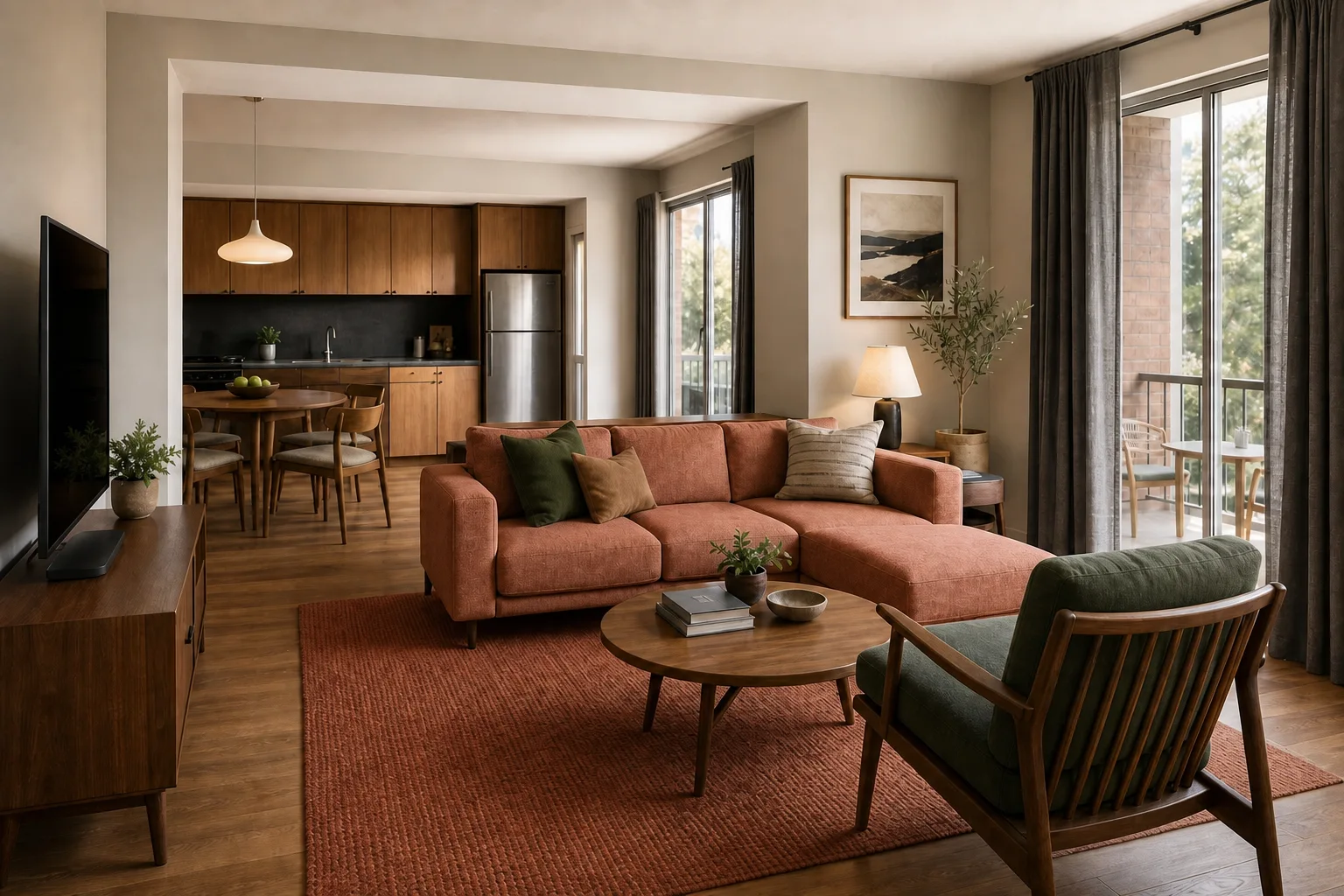
Recolored interior retaining natural light and material texture
Editing Workflow

Preserve Light and Texture

Apply the new color while retaining visible shadows, highlights, surface texture, seams, and surrounding reflections.

Design Intelligence

Compare Multiple Colors

Reuse the same image and area description to generate additional color previews without starting over.

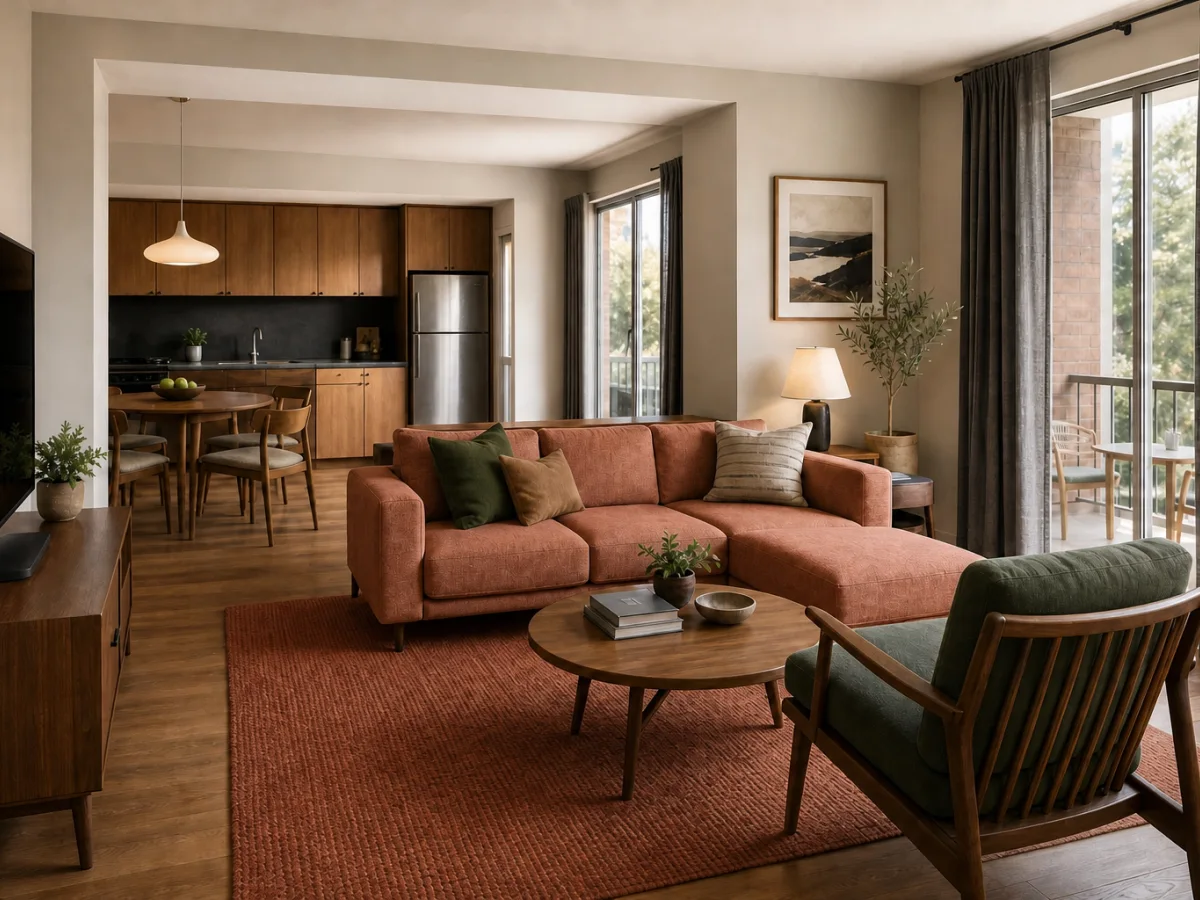
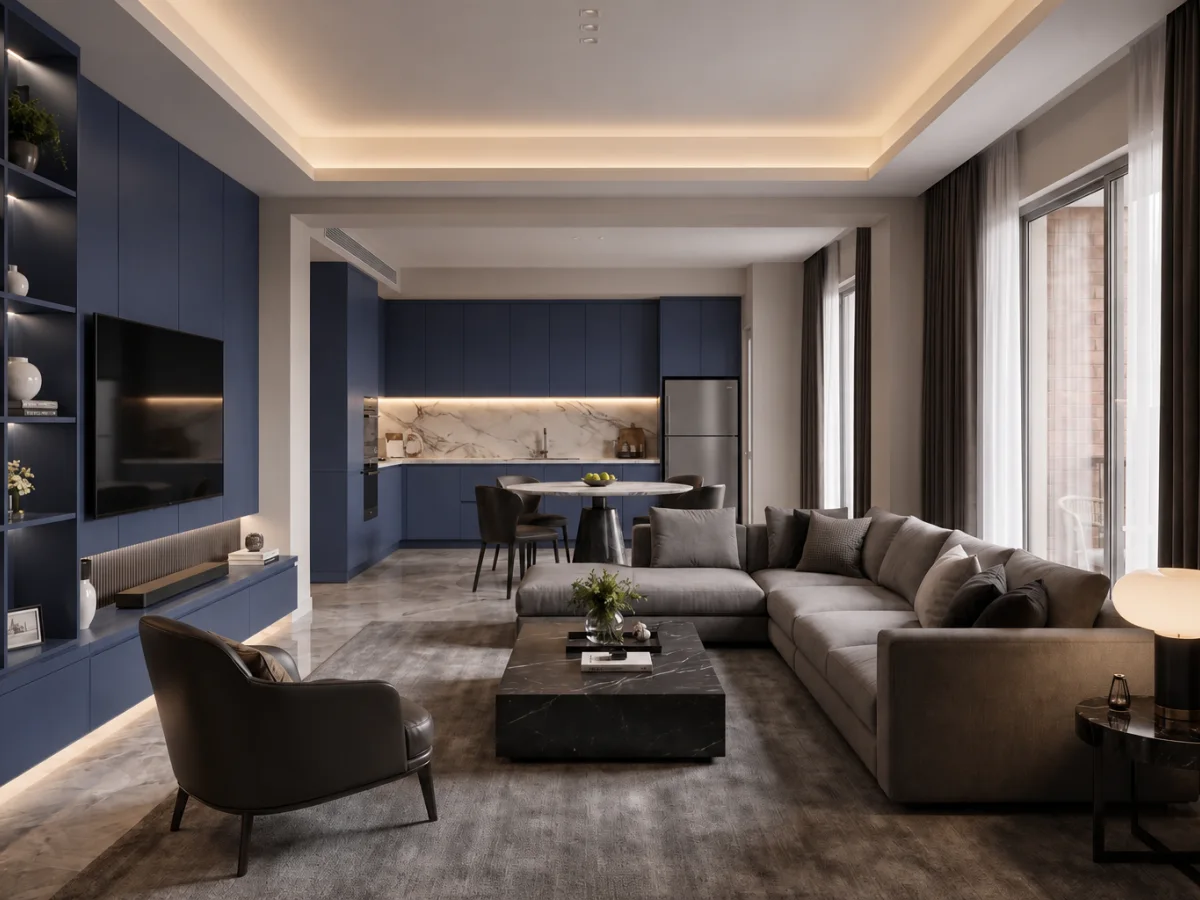
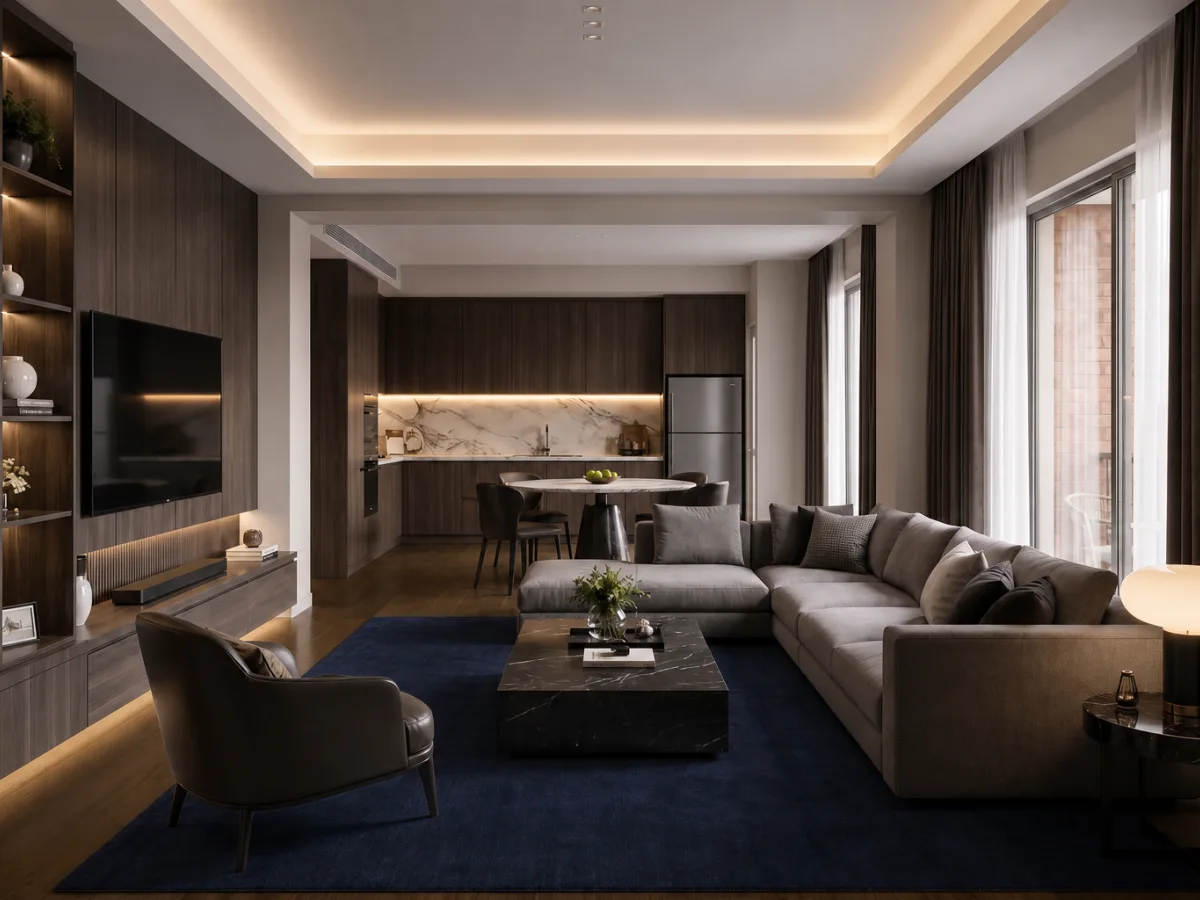
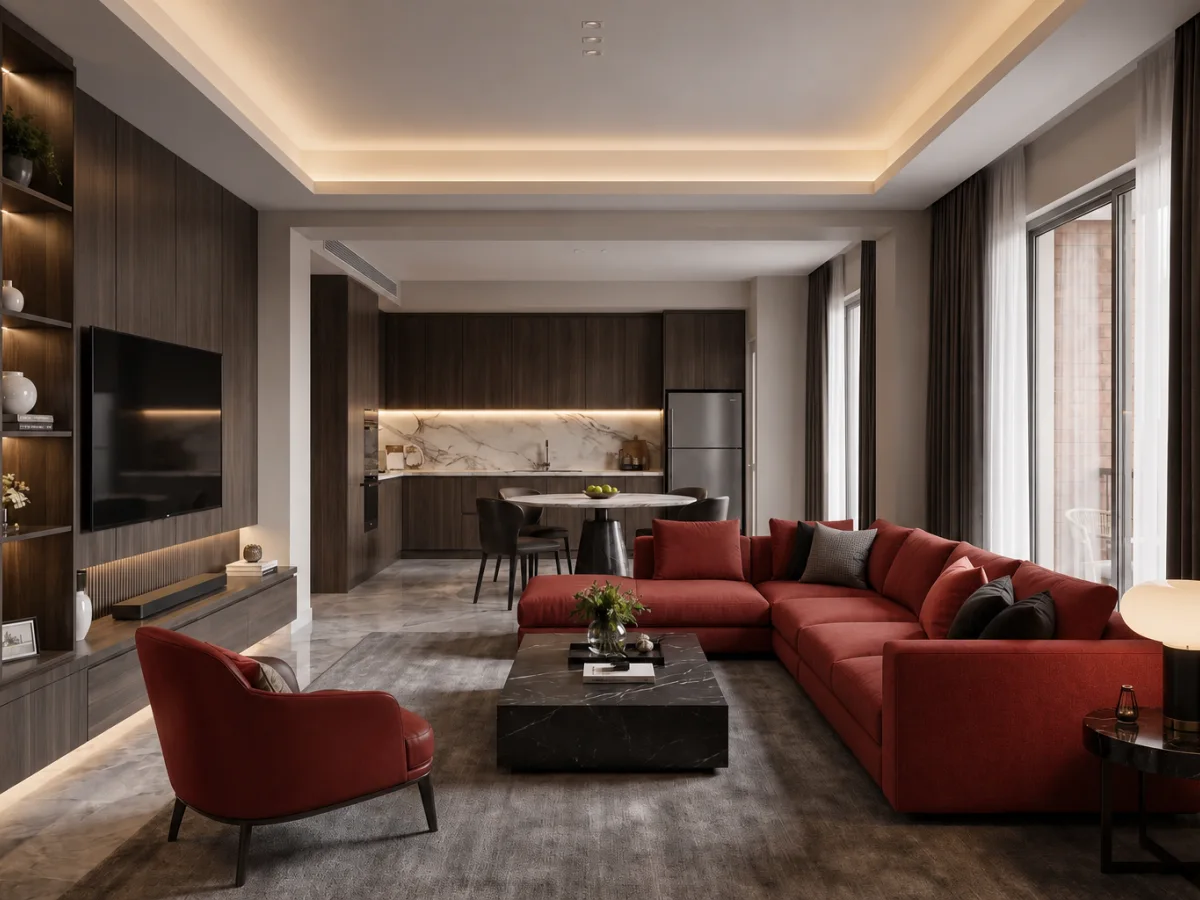
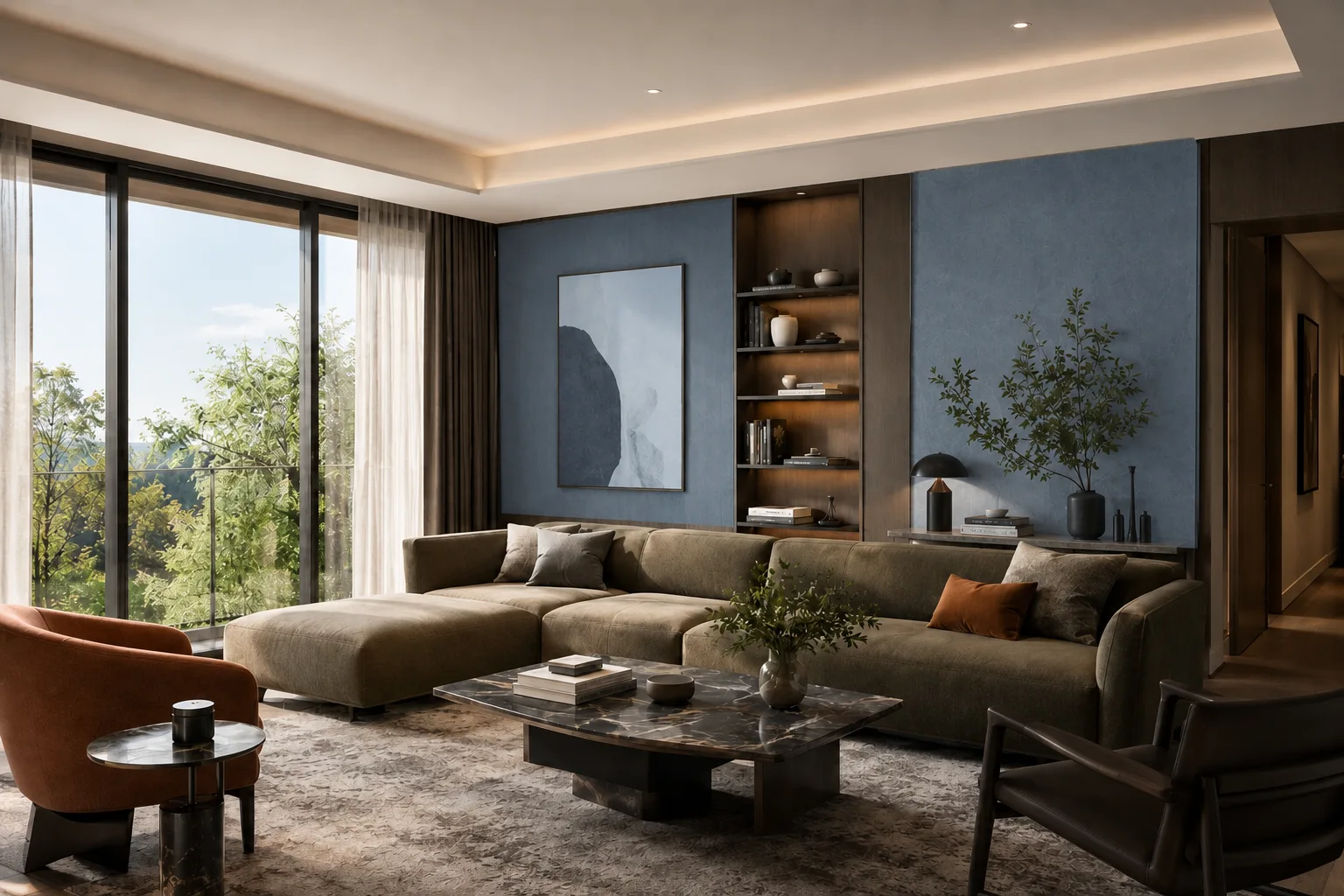
Alternative room color option for comparison

How to Use the AI Room Color Visualizer

Describe one surface and turn a room photo into a useful color preview in four simple steps.

Upload Your Room
Step 1

Upload Your Room Photo

Choose a clear image that shows the room and the surface you want to update.

Step 2

Select a Surface

Choose Walls, Floor, Cabinets, or Furniture, then identify the exact area with a short optional note.

Step 3

Choose Your Color

Select a color from the palette or enter a custom HEX value.

Step 4

Generate and Compare

Create your recolored room, compare it with the original, and try additional colors using the same image.

Choose Colors Before You Buy or Renovate

A small color sample can look very different when applied across an entire room. Preview color options in your own space before making the next decision.

Reduce Color Guesswork

See how a color works with your room's existing light, furniture, flooring, and finishes.

Compare Before Committing

Test alternatives before buying paint, ordering materials, refinishing cabinets, or replacing furniture.

Communicate Your Direction

Share a clear visual reference with family members, interior designers, painters, or renovation contractors.

Refine an Existing Design

Correct a color in a room visualization without generating a completely different interior.

Made for Interior Renovation Decisions

The AI Room Color Visualizer supports the people involved in choosing, presenting, and approving interior colors.

Homeowners

Preview paint, flooring, cabinet, and furniture colors in your actual room before spending money on materials.

DIY Renovators

Compare practical color options without learning professional rendering or photo-editing software.

Interior Designers

Create room-specific color alternatives for client presentations and early design reviews.

Renovation Professionals

Show clients how a proposed paint, cabinet, flooring, or furniture color may look before work begins.

Furniture and Material Teams

Present product colors in an existing room context while keeping the surrounding space consistent.

Use a Clear Room Photo for Better Results

The quality of the original image and the clarity of your area guidance both affect the final recoloring result.

The visualizer is intended for visualization and color comparison. Screen calibration, camera white balance, room lighting, surface texture, and matte or gloss finishes can affect how a color appears. Use a physical paint or material sample before making a final purchase or construction decision.

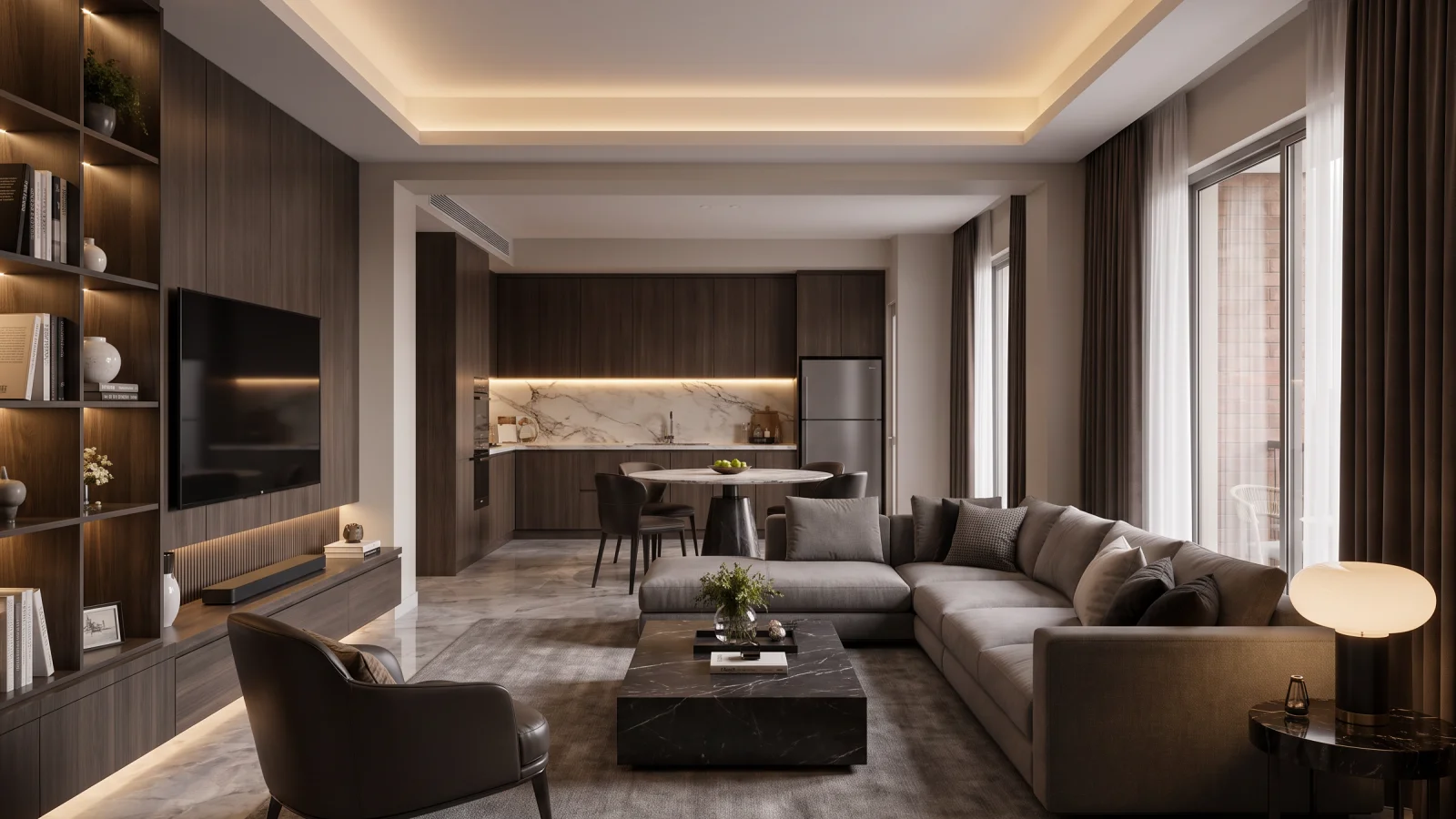
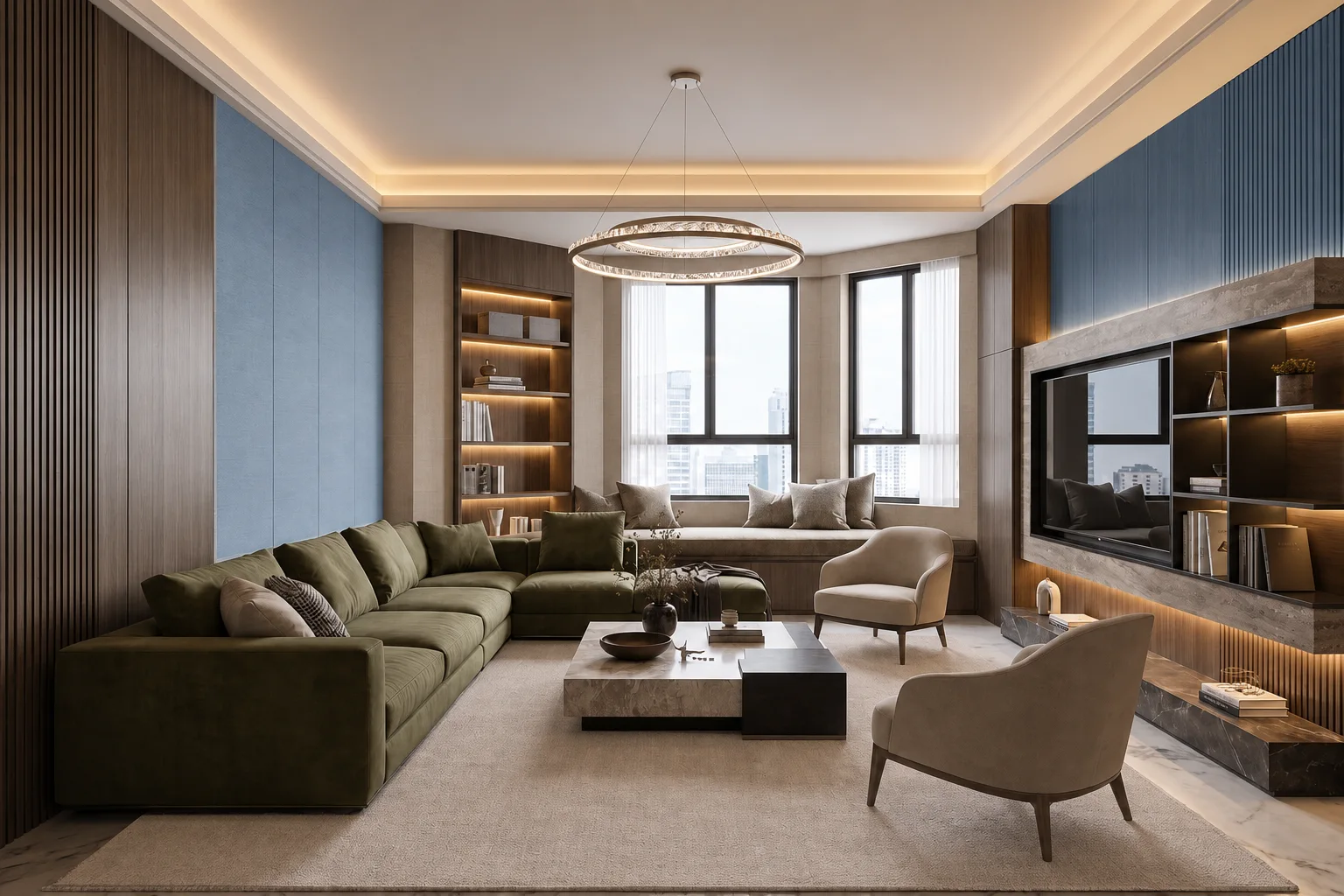
Clear well-lit room photo suitable for AI recoloring
Floor Planning

For Better Results

Use a clear image that makes the target surface easy to identify.

  • Use a clear, well-lit room photo
  • Keep the target surface or object visible
  • Use a natural camera angle with limited distortion
  • Include enough of the room to understand surrounding colors
  • Describe the exact target area when the image is ambiguous
Editing Workflow

Avoid

Use focused, readable images without visual obstructions.

  • Very dark or blurry photos
  • Heavy image filters
  • Extreme fisheye perspectives
  • Surfaces hidden behind large objects
  • Strong glare or overexposed windows
  • Images covered by text or watermarks
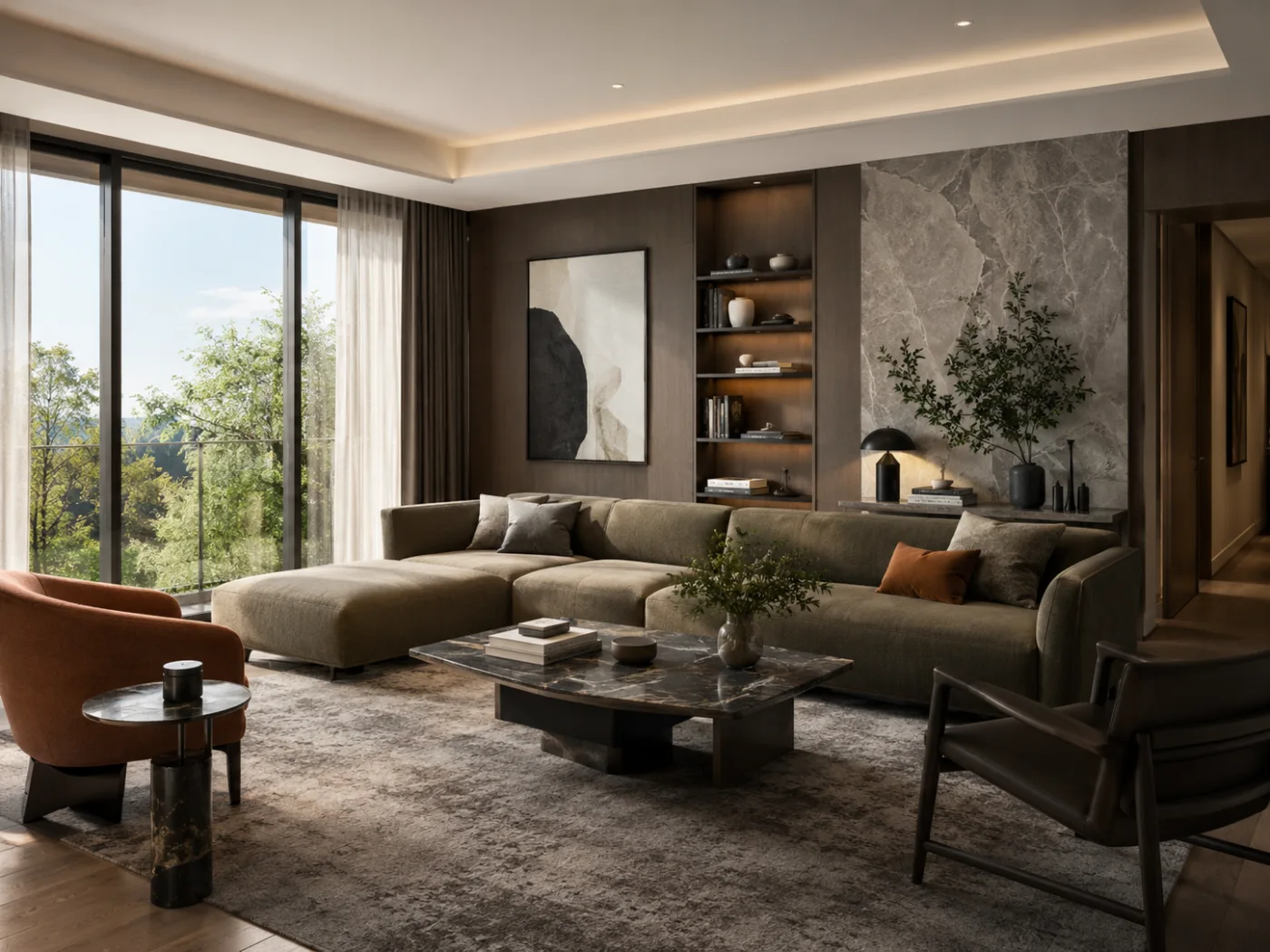
Interior photo with a clearly visible recoloring area

Pricing

Choose a Plan for Your Design Workflow

Start with the available credits, then choose a plan that fits the number of design directions you want to explore.

AI Room Color Visualizer FAQ

An AI Room Color Visualizer uses AI to change the color of a specified wall, floor, cabinet, or furniture item while keeping the rest of the room as consistent as possible.

Continue Designing Your Room

Use related tools for broader renovation, interior design, and furniture workflows.

AI Renovation

Visualize broader room renovations, finish changes, and remodeling directions using an existing space photo.

Try AI Renovation

AI Home Interior Design

Generate complete interior design directions for living rooms, bedrooms, kitchens, and other residential spaces.

Try AI Home Interior Design

AI Furniture Remover & Staging

Remove existing furniture, clear a room, or explore new virtual staging directions.

Try Furniture Removal & Staging

See Your Room in a New Color

Upload a room photo, choose the surface you want to change, and compare new colors before you renovate, repaint, or buy materials.

Use a physical paint or material sample before making a final purchase decision.